
Appearance
PayPal Refunds
PayPal only allows for refunds within 180 days of purchase. If we need to refund after the 180 days have passed, the only way to do a manual payout instead.
Step 1: Determine the users' PayPal account
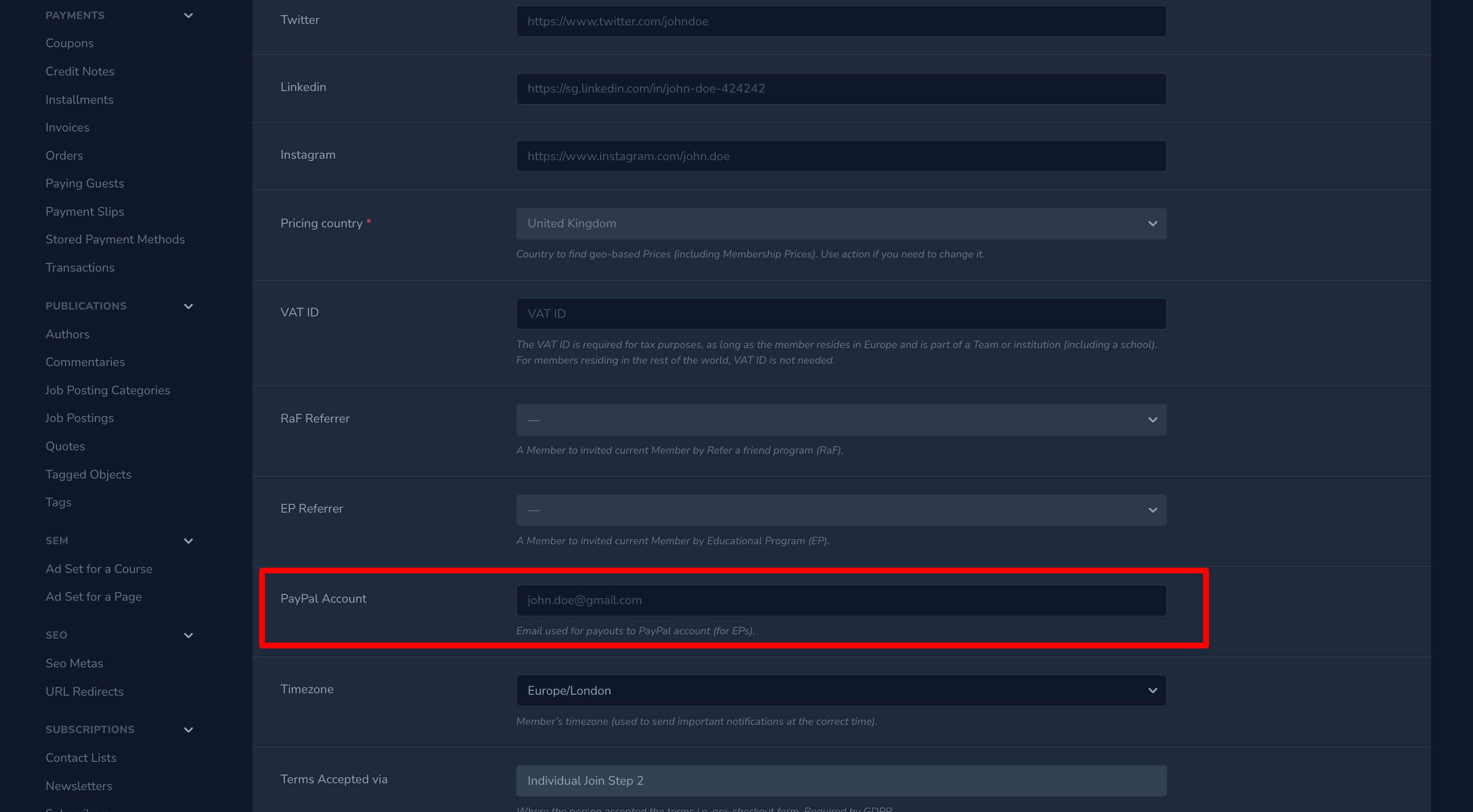
We first need to reach out to the user to determine what the user's PayPal account email address is before we can initiate the payout. Once we know what it is, it needs to be saved for the given user before we run step 2 in this process. It can be saved on the edit member page on Nova:
Step 2: Create a credit note
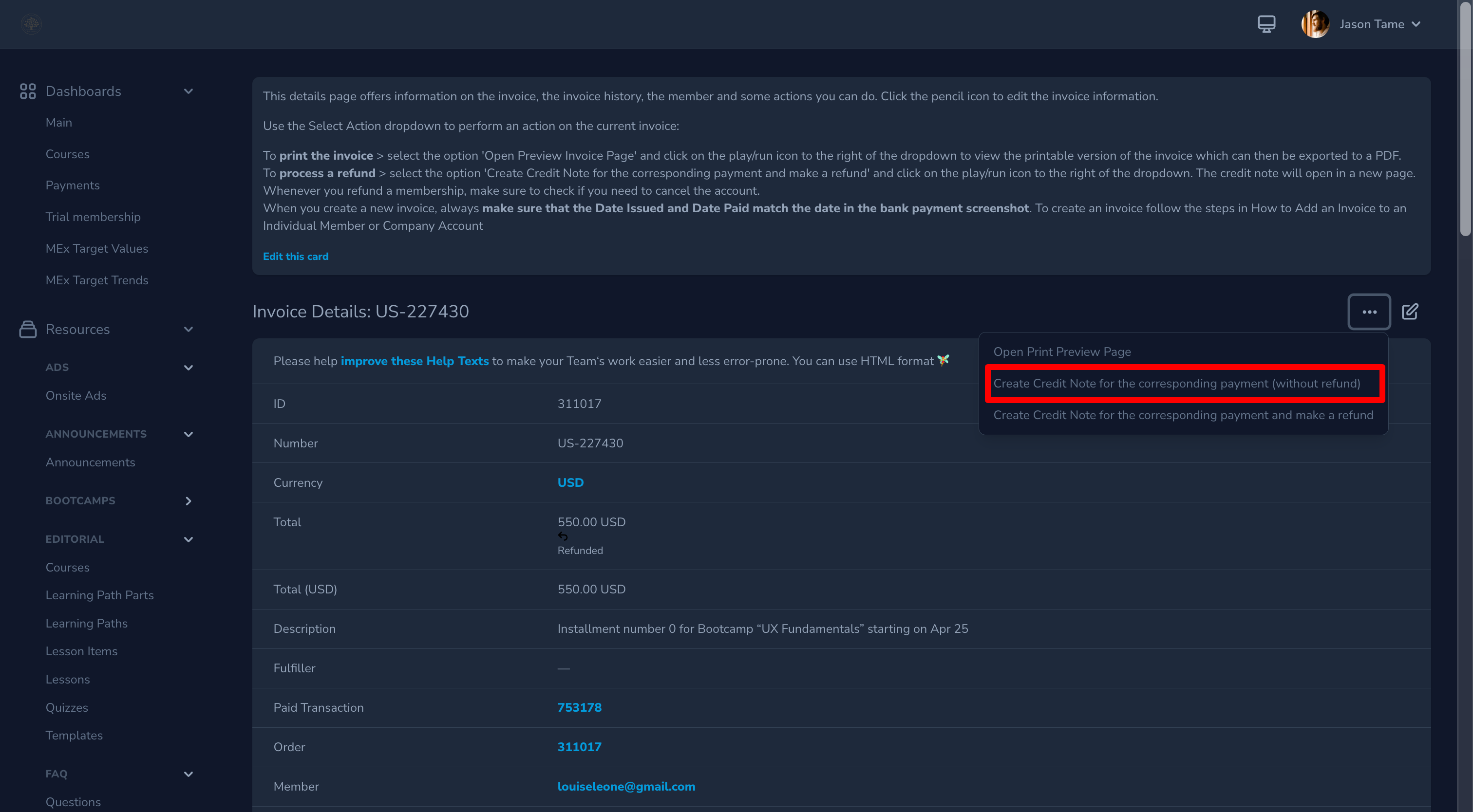
We need to create a credit note before initiating the refund. To do so, view the details for the invoice that you are refunding on Nova, click on the 3 dots on the right-hand side of the screen and select 'Create Credit Note for the corresponding payment (without refund)':
On the modal that pops-up, keep the default options as they are and create the credit note.
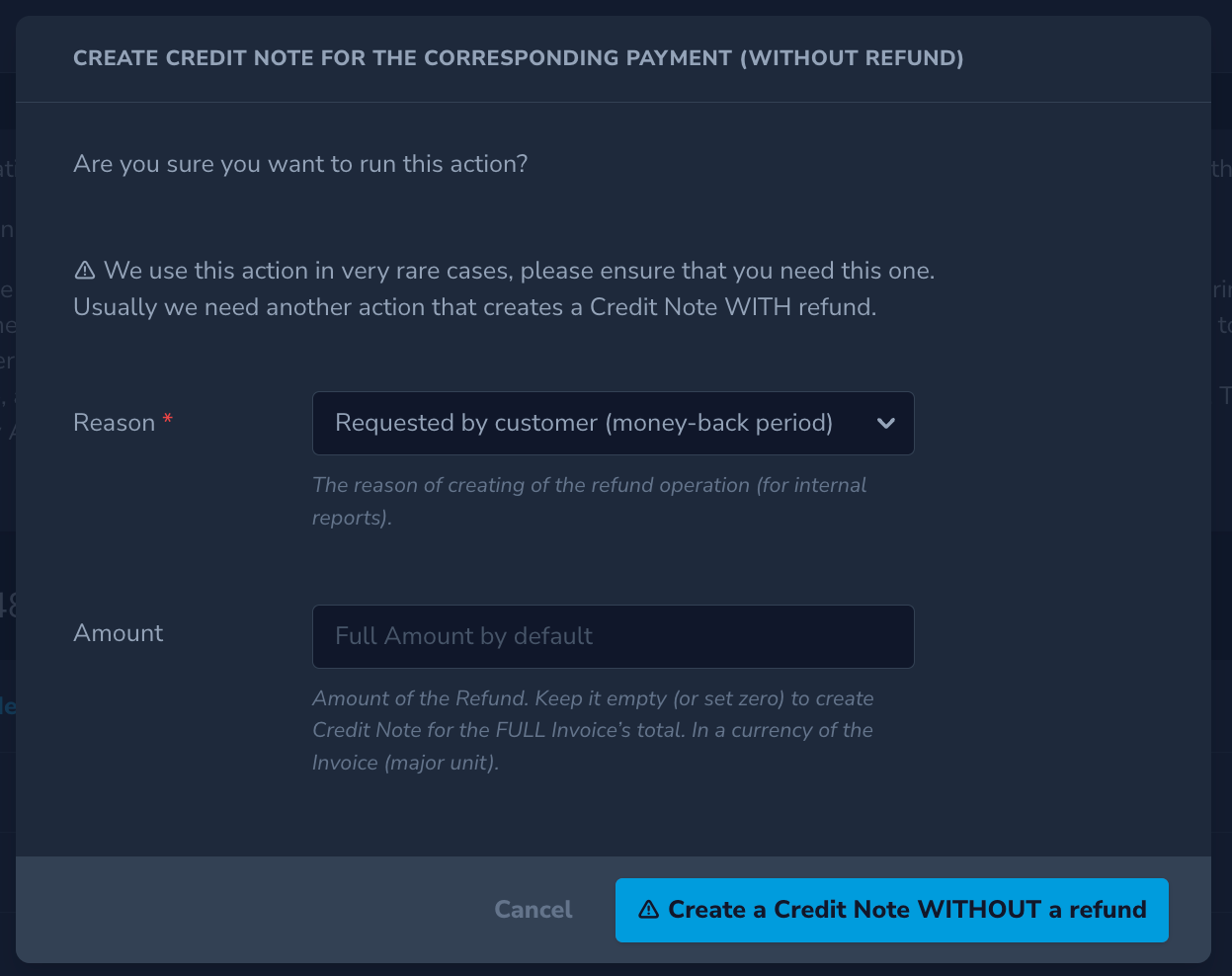
Once the credit note is created, take note of the ID - you will need it in step 4.
Step 3: Run payout script
Note: This step requires writing and running a snippet of code, so it can only be done by a developer.
The following script needs to be run in Tinker on the production server:
php
$pg = new PayPalDenmarkGateway();
$t = $pg->payout(Member::withoutGlobalScopes()->withTrashed()->find(MEMBER_ID), \App\Modules\Money\Entities\MonetaryAmount::createFromMinorUnits(REFUND_AMOUNT, \App\Modules\Money\Models\Currency::findByAlphabeticalCode('REFUND_CURRENCY_CODE')), 'Refund for Invoice INVOICE_NUMBER');
You'll need to replace the placeholders with valid data for the given refund:
- MEMBER_ID: the ID for the member in the database, e.g 108626
- REFUND_AMOUNT: the amount to be refunded, with an underscore separator e.g 135_00, 550_00.
- REFUND_CURRENCY_CODE: The code for the currency to issue the currency in, e.g EUR, USD
- INVOICE_NUMBER: The number for the invoice, e.g # US-227430
WARNING
Once you run this, some events triggered by PayPal webhooks are going to fail. Don't panic - this will be resolved in step 4 😃
Step 4: Fix credit note and transaction data in the DB
Note: This step requires manual changes in the database, so it can only be done by a developer.
When you completed step 3, the console should have shown you the new transaction data. Take note of the ID, as you will need to find the newly created transaction with it in the DB.
Fix transaction data
- Open your database tool of choice
- Open the
payment__transactionstable - Search for the newly created transaction using the ID
- Add the ID of the credit note you created in step 2 in the
order_idcolumn - Find the ID of the paid transaction linked to the original invoice and add it in the
charge_transaction_idcolumn
Fix credit note data
- Open your database tool of choice (if not open already)
- Open the
payment__orderstable - Search for the credit note you created in step 2 using it's ID
- Enter the ID of the transaction in
paid_transaction_id - Set
paid_atfield to null - step 2 automatically added a date, but the PayPal webhooks will fail to update the credit note/transaction without removing this value.
WARNING
You might see an error in #errors-production about a FillTransactionFeeUsd job failing. This happens because of a previously failed attempt to add the PayPal gateway fee via a webhook listener.
If this occurs, you can login to the PayPal dashboard, find the transaction, check the gateway fee (stored as payout_item_fee in the transaction native metadata) and then store it as the value of gateway_fee_as_minor for the transaction in the DB. Make sure you convert it to minor format first. You'll also need to check the currency of the fee and add that as the value of gateway_fee_currency_code.
You may also be able to find the gateway fee in the logs in #errors-production instead of needing to login to the PayPal dashboard