
Appearance
PHPStorm
Plugins
Laravel Idea Plugin
Must-have for backend developers as it provides autocomplete for a lot of Laravel’s magic (and not only!). Paid, but it is worth it (you can buy it using IxDF card, please use an individual yearly subscription)
GitHub Copilot
Our main AI assistant for IDEs.
Mermaid
Provides support for creating diagrams with Mermaid: the format we use for internal docs.
PHP Inspections (EA Extended)
Static Code Analysis tool for PHP. It provides hints for code optimizations, adds new code inspections rules. To configure inspections of this plugin, use this screen: 
.ignore
Coloring ignored files in the Project View, Entries inspection (duplicated, covered, unused, relative, incorrect syntax, relative entries) with fix actions, etc.
EditorConfig
Plugin adds supporting the EditorConfig standard. What is EditorConfig? EditorConfig helps developers define and maintain consistent coding styles between different editors and IDEs. EditorConfig settings will silently override the normal settings configured in the IDE for all files controlled by EditorConfig. 
Features
Code reformat
CTRL + SHIFT + ALT + L will reformat your code (selected area) according to the preferred style guidelines.
To configure code style for PHP, open PHPStorm settings and go to Editor > Code Style > PHP and choose PSR12. Have some customisations of PSR12, but we also shared some PHPStorm settings within this repository, so you know be able to use Code reformat without any major issues.
Embedded Local Terminal
PhpStorm features a local terminal that makes it possible to access the command line. Depending on your platform, you can work with command line prompt, Far, powershell, bash, etc. Using the terminal, you can execute any command without leaving the IDE. 
Emmet
The Emmet toolkit enhances coding with HTML, CSS, and JSX. You can use Emmet code templates without leaving PhpStorm. To expand a template into the correct markup, type its abbreviation and press ⇥ Tab.
Example: ul>li*3 will be expanded to:
html
<ul>
    <li></li>
    <li></li>
    <li></li>
</ul>Multiple Selection
PhpStorm supports selecting multiple text fragments. So doing, one can select multiple words, lines or rectangles. Video.
Code hinting
CTRL+Space will summon a code hinting dialog, if you accidentally closed it or for some reason it didn’t open: 
Clipboard
PhpStorm remembers multiple clipboard contents – you can press CTRL+SHIFT+V to summon a popup which lets you paste clipboard content that’s less recent than the latest.
Working with git
It’s possible to use the UI for all everyday git commands. Great video
Using of ESLint
The ESLint tool is run through node.js, therefore, make sure the node.js installed on your computer (yes, it doesn’t work with remote node.js interpreters).
To activate and configure ESLint:
- Open the Settings / Preferences Dialog and expand the JavaScript node under Languages&Frameworks, and then click ESLint under Code Quality Tools.
- Select the
Enablecheck box to activate ESLint. After that the controls in the dialog box become available. - In the Node Interpreter field, specify the NodeJS installation home. Type the path to the NodeJS executable file manually, or click the
...button and select the location in the dialog box, that opens. - In the ESLint Package field, specify the location of the eslint package installed in the current project. It’s
{path to project}/node_modules/eslintor a path to your globally installed eslint; - Appoint
.eslintrc.cjsconfiguration to use.
An example of a valid configuration:

All code-quality tools (ESLint as a part of them) register themselves as PHPStorm code inspections: they check JavaScript code for the most common mistakes and discrepancies without running the application. When a tool is activated, it launches automatically on the edited JavaScript file. Discrepancies are highlighted and reported in pop-up information windows, a pop-up window appears when you hover the mouse pointer over a stripe in the Validation sidebar. You can also press Alt+Enter to examine errors and apply suggested quick fixes.
Database tool
The Database tool window provides access to functions for working with databases. It lets you view and modify data structures in your databases and perform other associated tasks. For more information, see Working with the Database tool window. Here are configs for different DBs:
Docker DB config
- Host:
localhost(as we use port forwarding by default) - Port:
3306(or your custom value of theFORWARD_DB_PORTenv var (the port you expose from Docker)) - User: as in your .env file (
DB_USERNAMEvar) - Password: as in your .env file (
DB_PASSWORDvar) - Database: as in your .env file (
DB_DATABASEvar) - SSH: not needed for such a config (if you expose DB port from Docker to localhost)
Example: 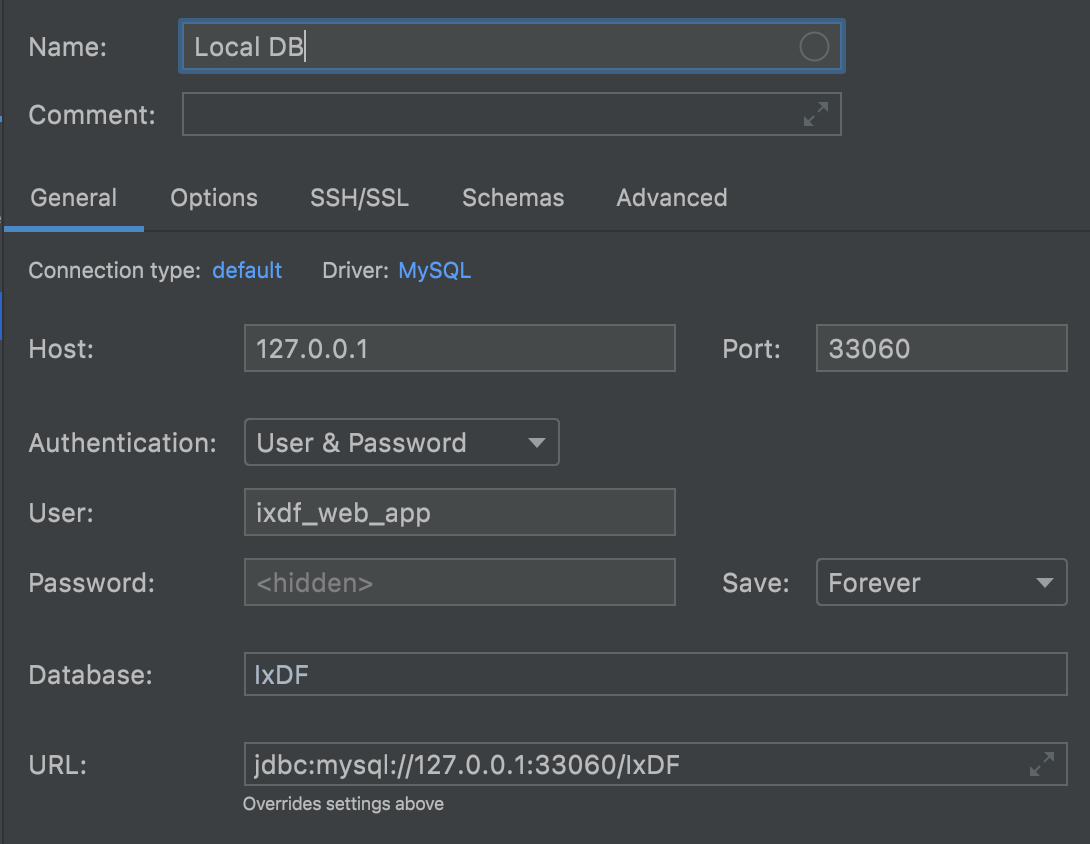
Staging site DB
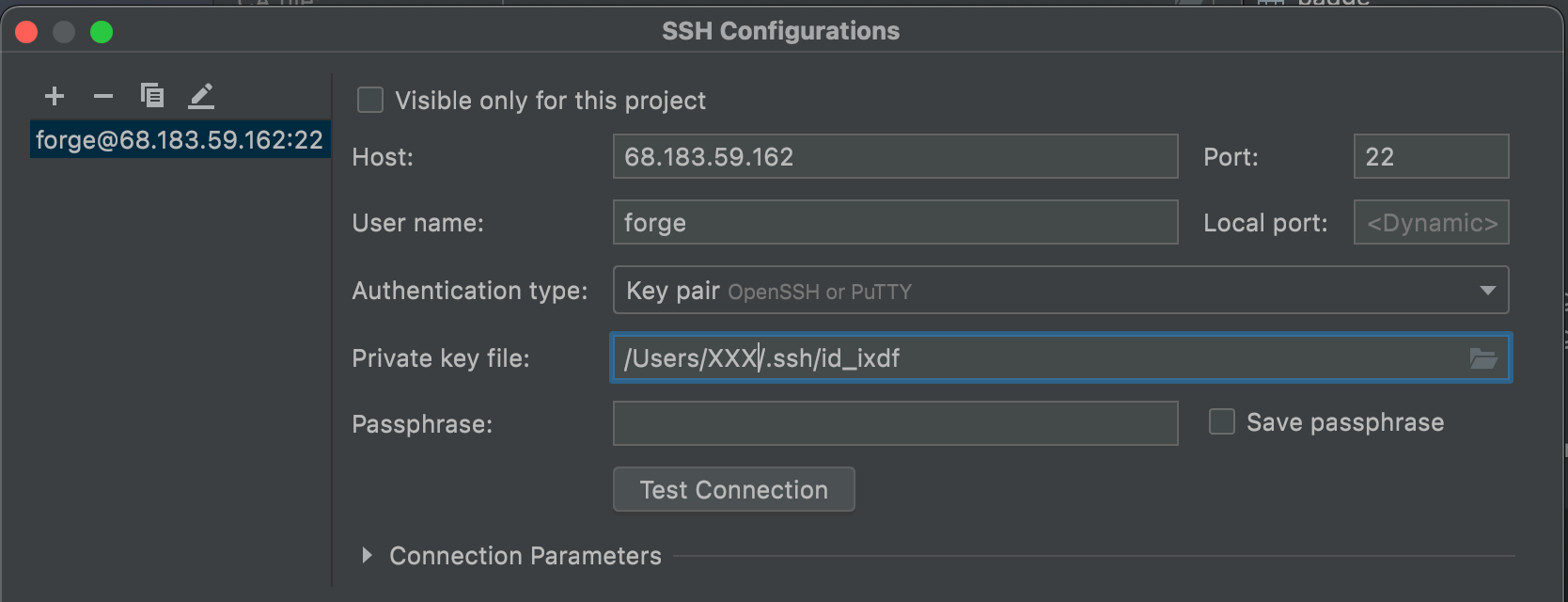
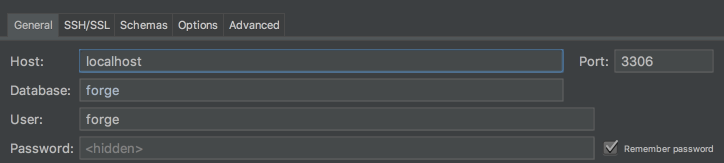
Production site DB
We use a separate MySQL server for the production app. This server is under firewall and available from a private network only. This is why you need to setup SSH access to production server, and then you can use MySQL server IP address from the private network.
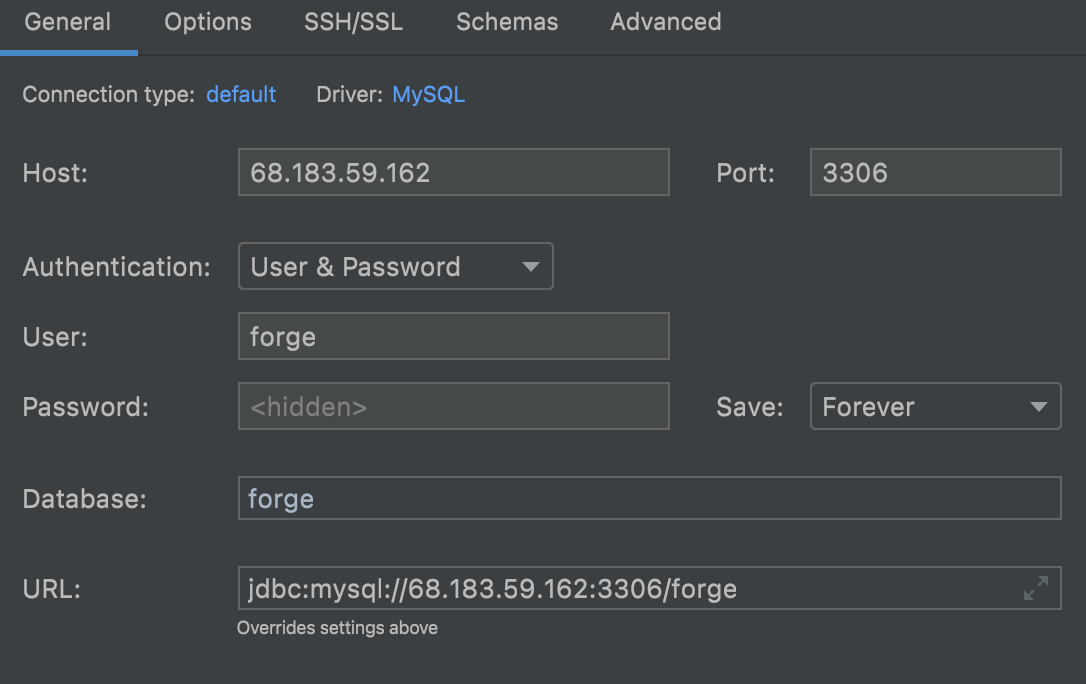
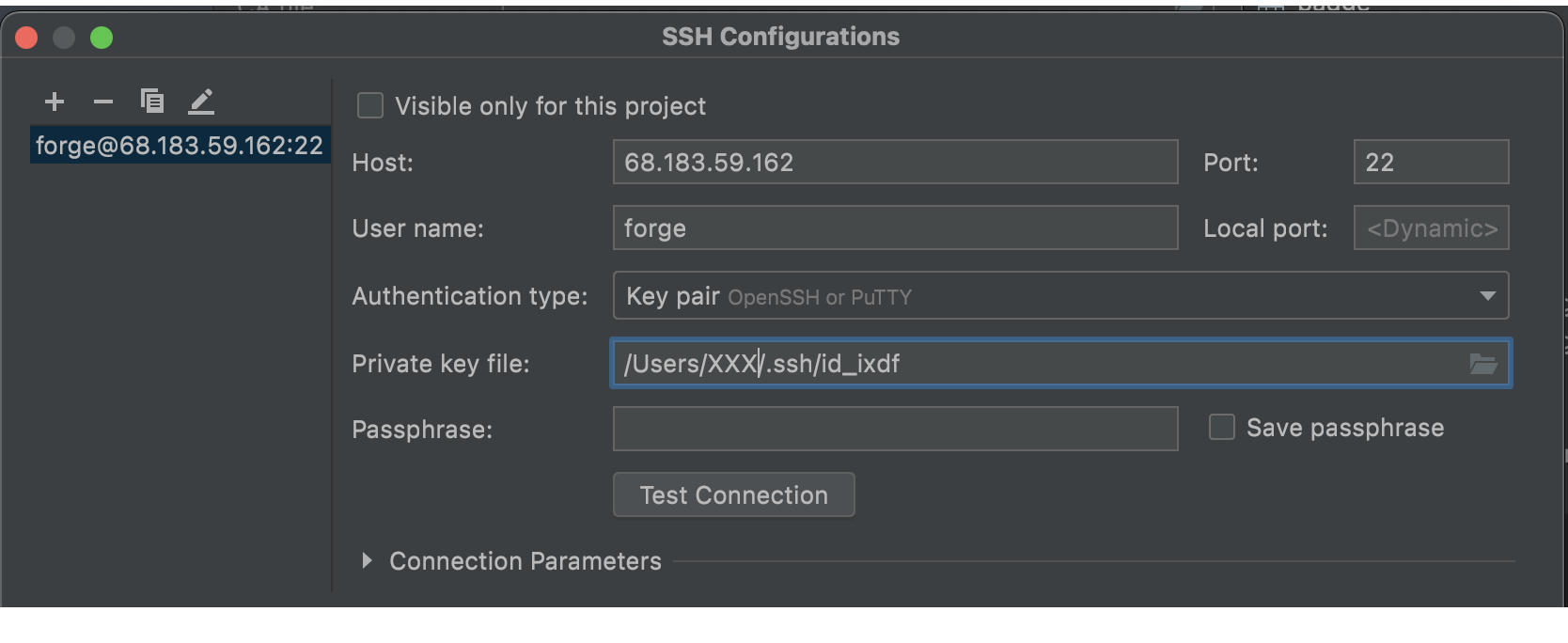
Setup Xdebug
- Configure a proper IDE key & port:
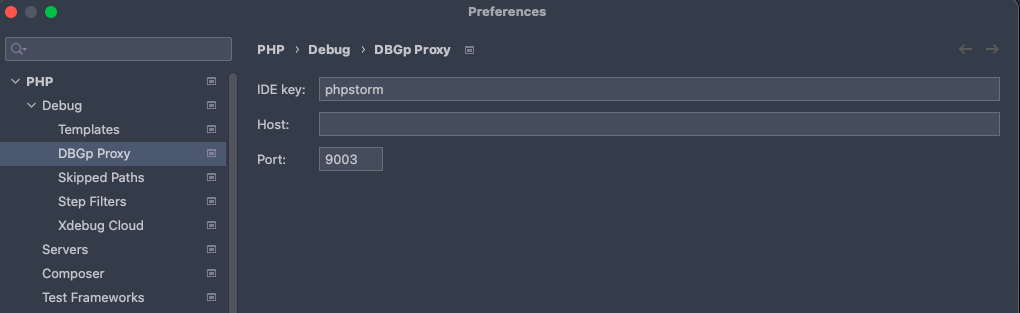
- Configure a local server with proper mappings:
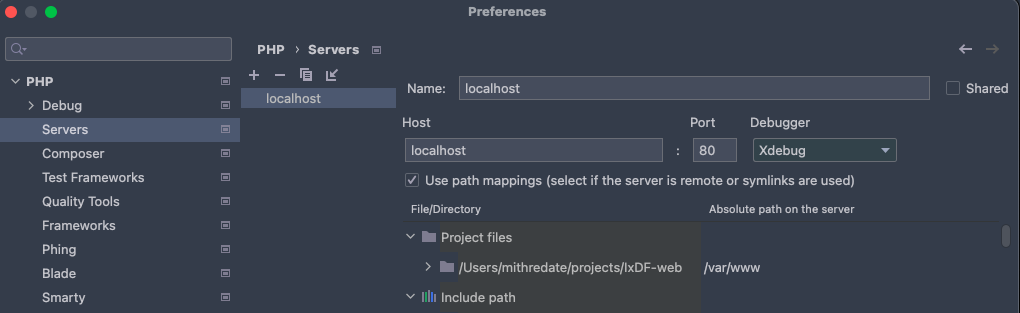
- Add proper debug/run configuration:
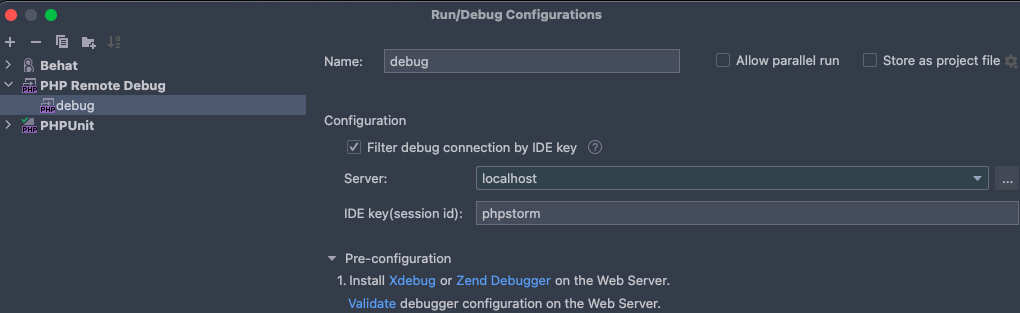
- Make sure you have xdebug enabled in your .env (you should restart the container for this to work):
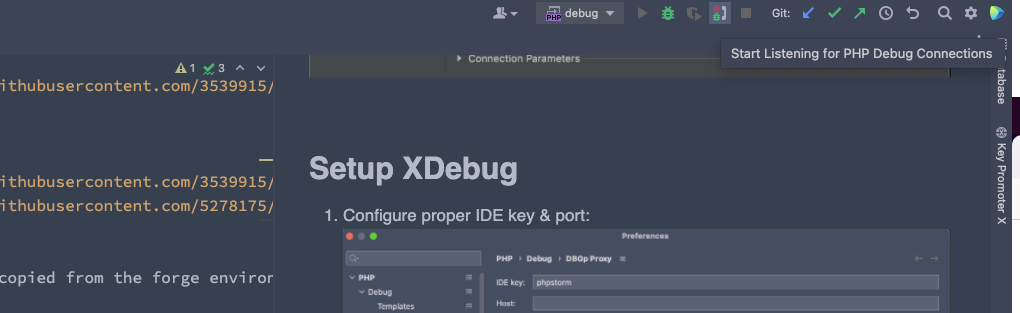
SAIL_XDEBUG_MODE=debug - Enable debug listener:
Setup PHPUnit test runner
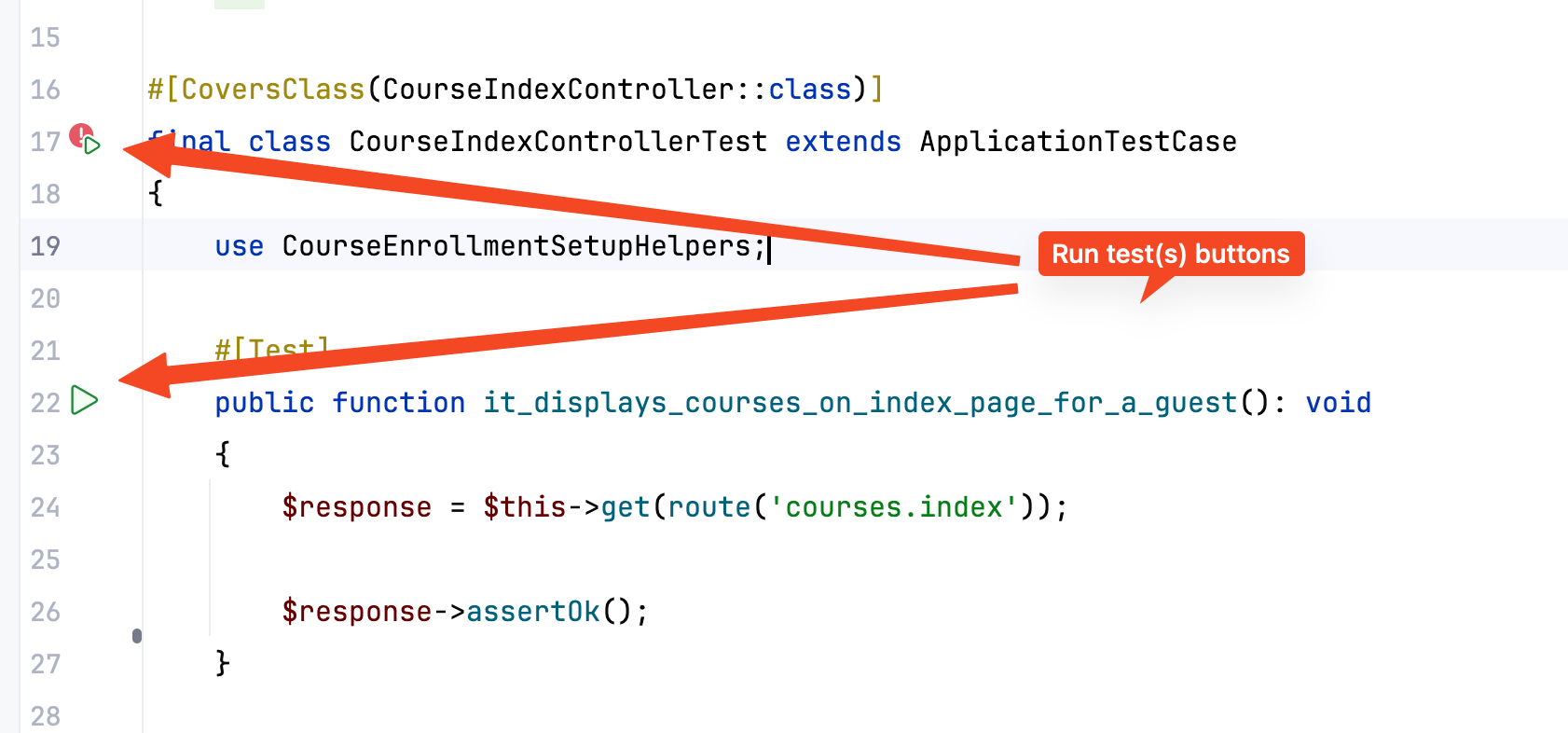 To simplify running PHPUnit tests from your IDE using "play" buttons (method level or class level), you need to set up PHPStorm to use PHP interpreter from your Docker:

Then make sure that the PHP CLI interpreter is set to the one you just created (from Docker).
Links
- PhpStorm Tips & Tricks (very short video tips)
- Official documentation at the confluence
- Official blog
- The Visual Perception of Code