Appearance
Uploading Video
Once you have video files you want to upload (provided by the video editors and the editorial team, usually placed in a specific Sync folder), you need to go to the AWS page at https://s3.console.aws.amazon.com/s3/buckets/idf--video-upload/production/?region=eu-central-1&tab=overview.
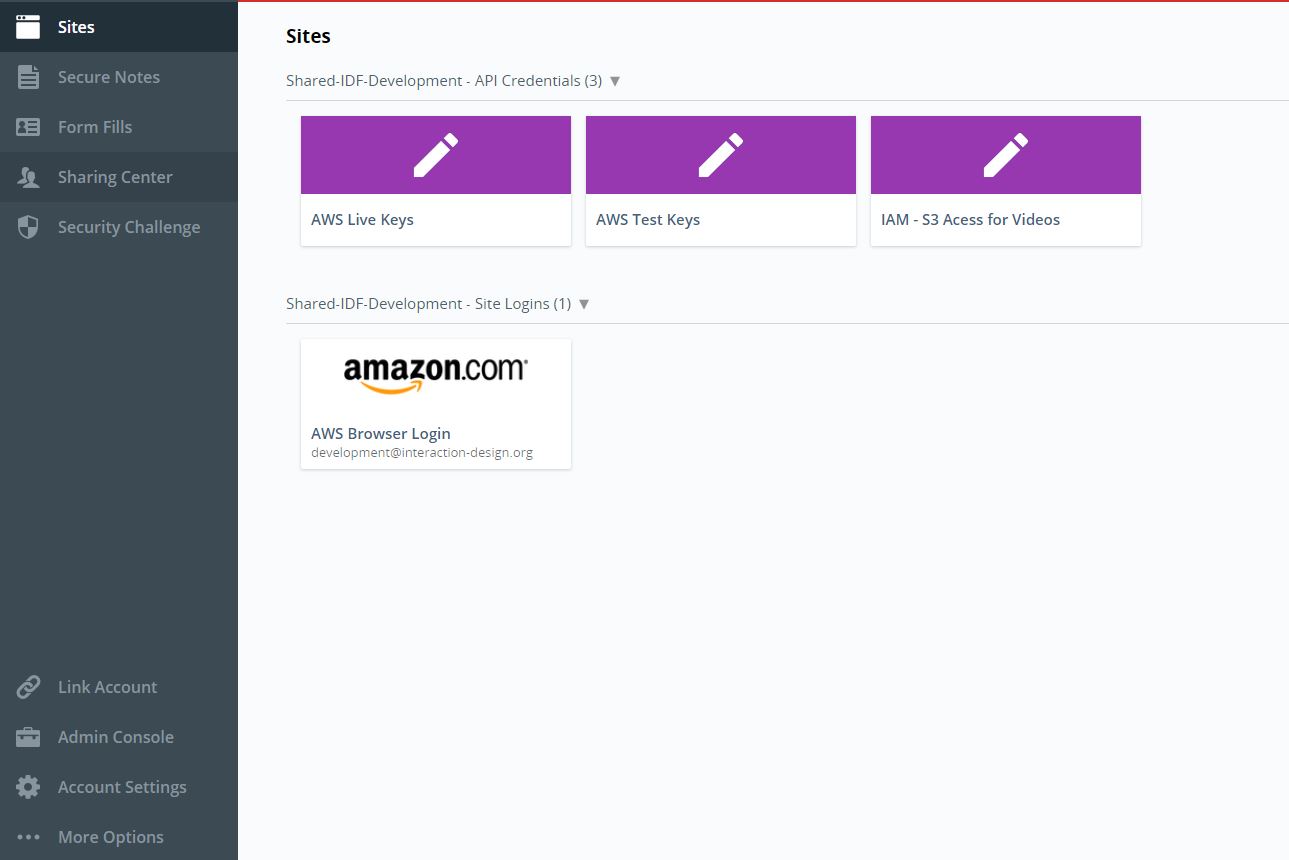
AWS is a service that allows us to upload videos and stream them from our platform. The page is password protected, but you will be able to find login info in the LastPass shared folder (LastPass is a password manager). Note that AWS will send a one-time password (OTP) to a phone which will magically appear in #work-logs in Slack. Be sure to leave a heavy check mark (✓) to indicate that you requested this OTP (not a hacker).
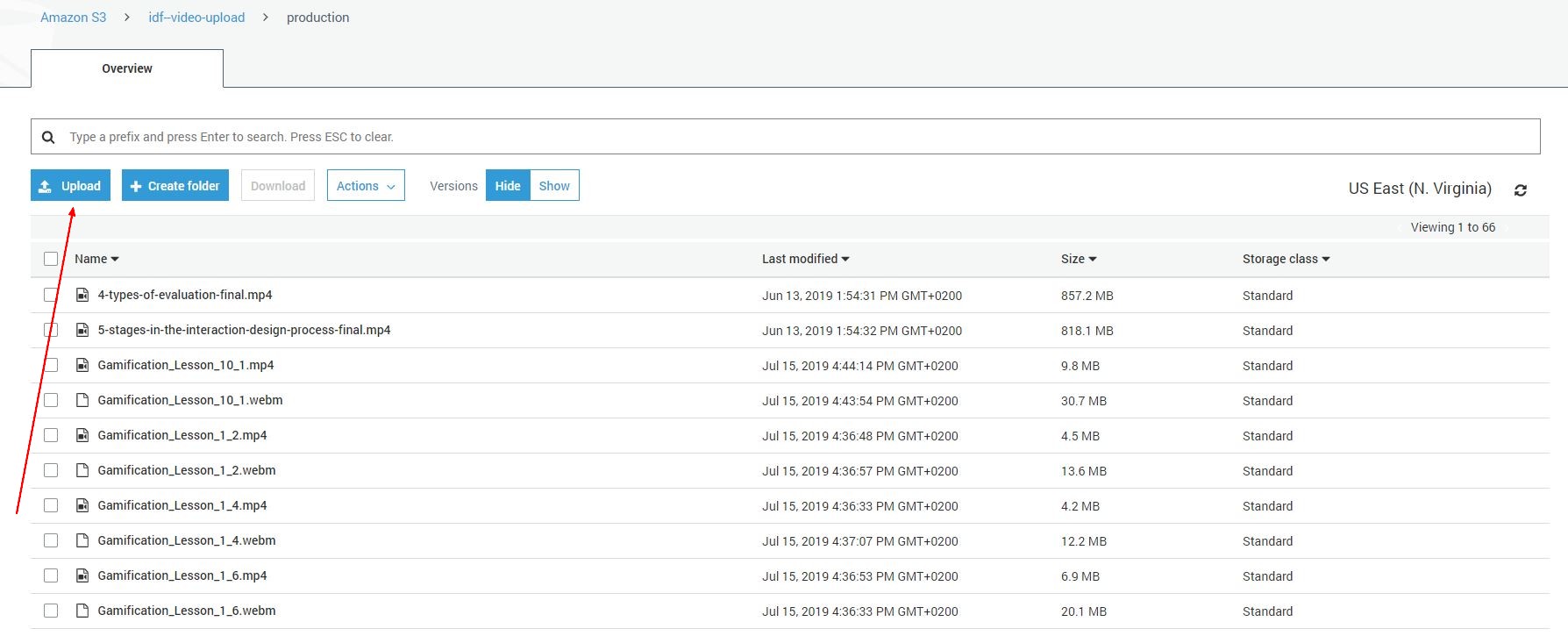
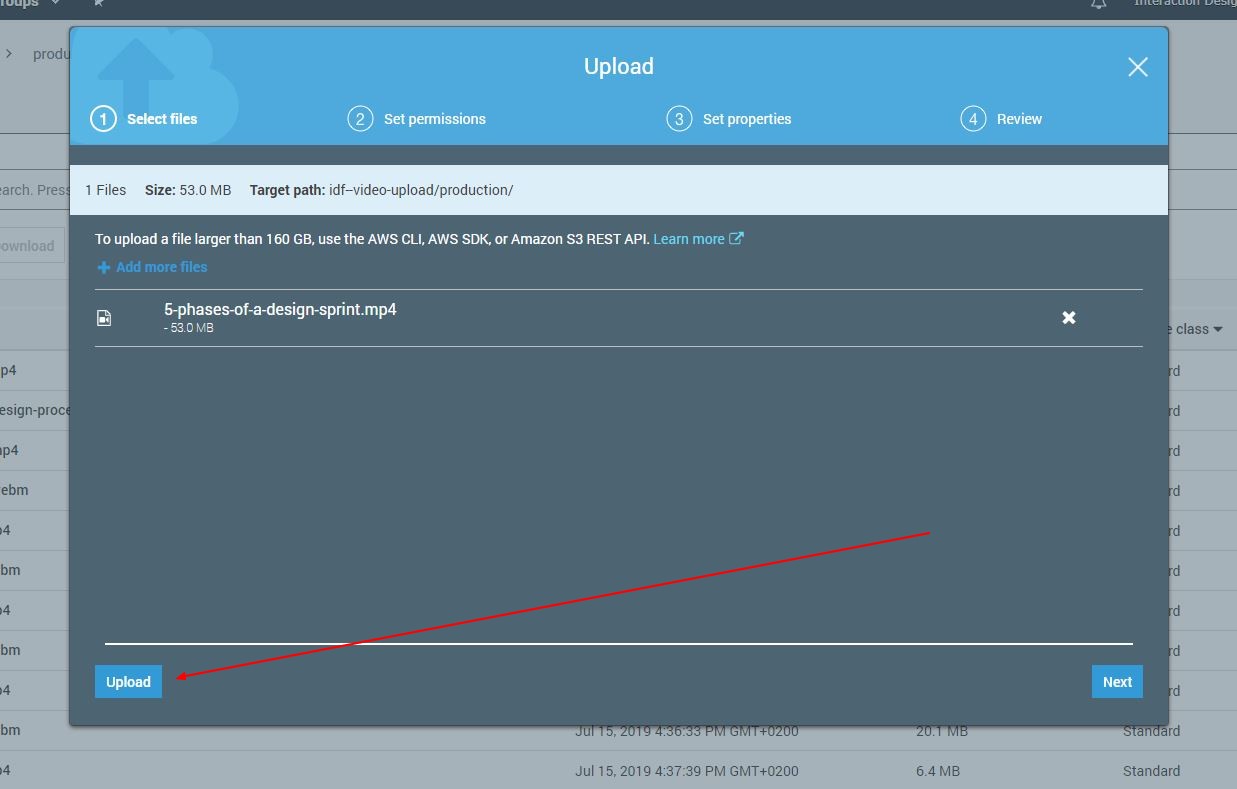
- Once you successfully log in, click the "Upload" button
- Add your video file using the "Add files" button
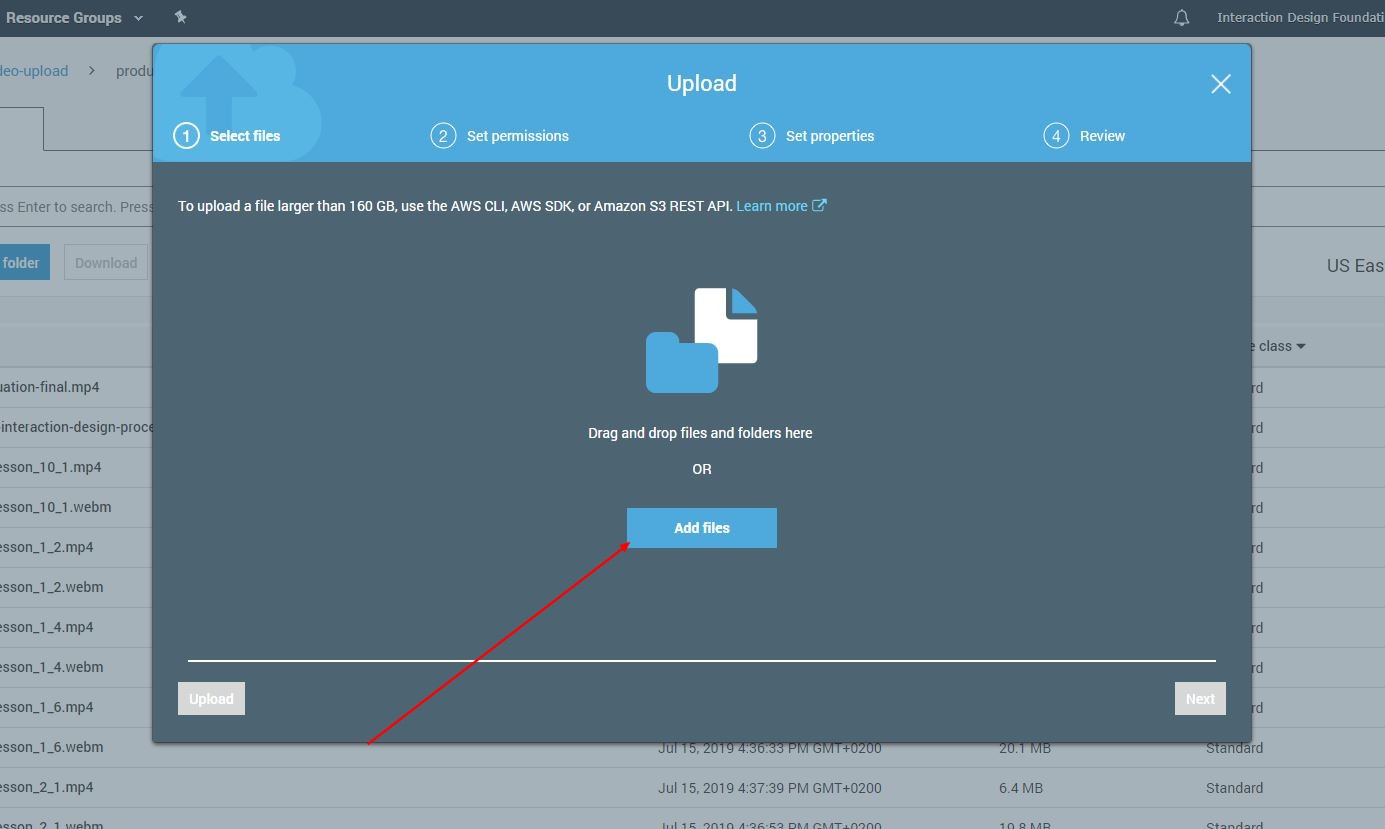
- Once the file is selected, use the "upload" function (don’t select the next button)
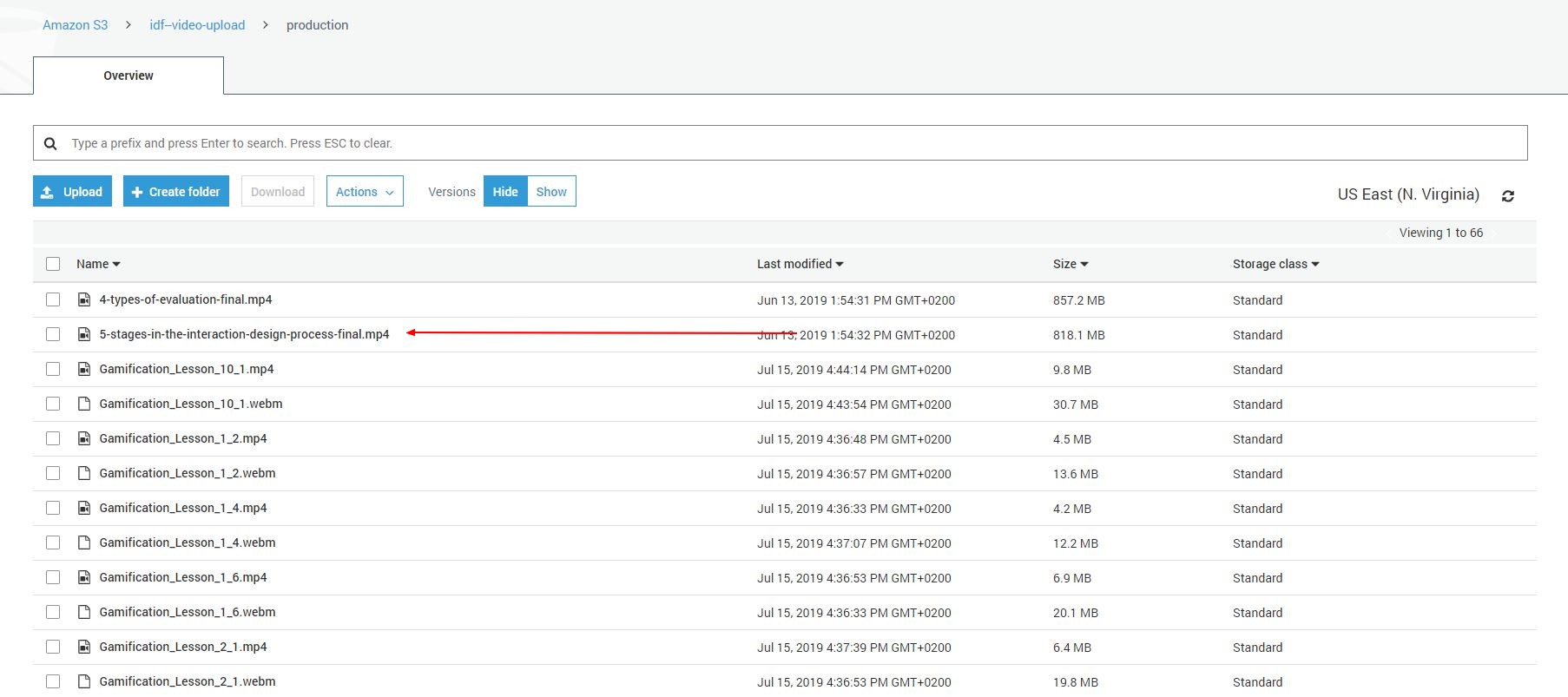
- After the upload is completed, you will see the file in the AWS folder. If you don’t see it on the first page, you can always use the search function (input the video title). Select the uploaded file by clicking the file name
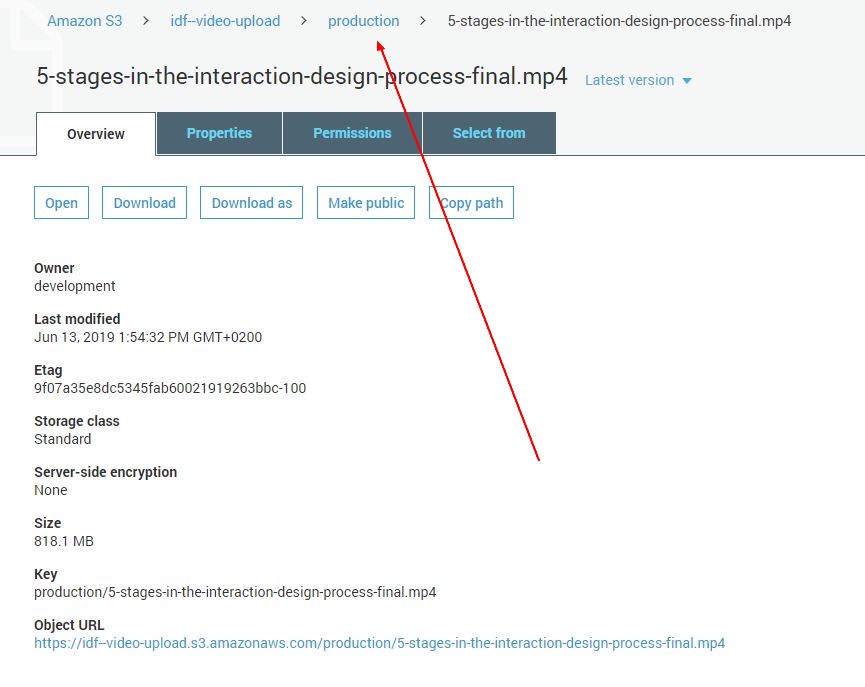
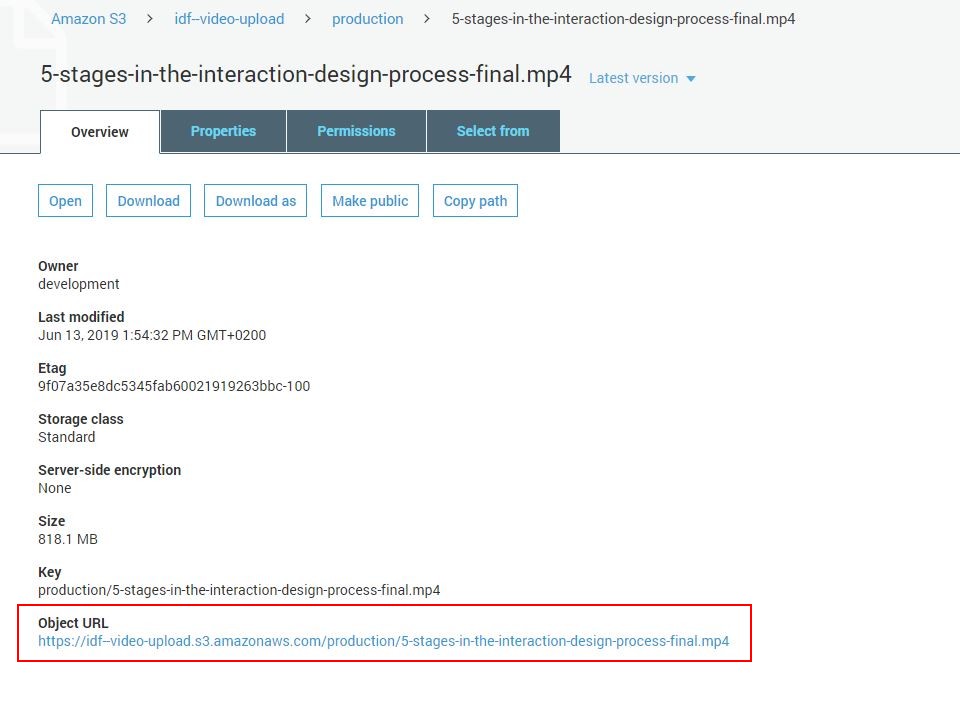
- You will be redirected to a new page where you will find all the details about the video including Object URL which you will need for processing videos through our Nova Admin panel.
- If you need to upload your next video, click on the "production" tab, and you will be redirected to the main folder. Afterward, repeat the steps to upload a new video