Appearance
VSCode
Extensions to install
- Tailwind CSS IntelliSense
- Laravel
- Cline
- ESLint
- Debugger for Chrome - Connect your VSCode with Google Chrome’s debugger
- EditorConfig
- stylelint
- Prettier
- HTMLHint - Useful for catching invalid html and unclosed tags. Add Blade as one of the languages to have HTML checking in Blade files.
Optional
- GitLense - Supercharge git capabilities of VSCode.
- Auto Close Tag - Automatically close HTML Tag
- Auto Rename Tag - Automatically rename HTML Tag name on other end
- Rainbow brackets - Make opening/closing brackets easier
- Laravel Blade formatter
JavaScript Snippets
Less typing with snippets. You can add them in Preference > User Snippets.
json
"Define new module": {
    "prefix": "define",
    "body": [
        "define([$1], ($2) => {",
        "	$3",
        "});"
    ],
    "description": "Defining new module"
},
"Require new module": {
    "prefix": "requireModule",
    "body": [
        "require([${1:deps}], (${2:Module}) => {",
        "	const initialize = () => {",
        "		$3",
        "	};",
        "",
        "	if (document.readyState === 'loading') {",
        "		document.addEventListener('DOMContentLoaded', initialize);",
        "	} else {",
        "		initialize();",
        "	}",
        "});",
        ""
    ]
},
"New constant function": {
    "prefix": "constFunction",
    "body": [
        "const ${1:functionName} = (${2:params}) => {"
            "$3",
        "};",
        ""
    ]
},
"Module docs": {
    "prefix": "moduledoc",
    "body": [
        "/**",
        " * @module ${1:module namespace}",
        " * @description ${2:purpose, why}",
        " */",
        "",
    ]
},
"Return with @alias": {
    "prefix": "returnAlias",
    "body": [
        "return /** @alias ${1:modules/yourModuleName} */ {"
            "$2",
        "}",
    ]
}
Support emmet in Blade template
To support emmet in *.blade.php files, add this in your setting, Preference > Setting or Cmd + ,
json
"emmet.includeLanguages": {
    "php": "html",
    "blade": "html",
    "html": "html"
}
Emmet snippets
For HTML Code in Blade template
Save the following emmet snippets in your primary storage, eg.
/Users/me/emmet/snippets.jsonjs{ "html": { "snippets": { "img:lazy-s3": "<img data-src=\"{{ Storage::url('${1}') }}\">", "img:lazy": "<img data-src=\"${1}\">", "script:defer": "<script src=\"${1}\" defer></script>" } }, "css": { "snippets": { } } }Set your emmet snippets in VSCode setting. Note that
snippets.jsonfile will be automatically scan by VSCode.js"emmet.extensionsPath": "/Users/me/emmet/",
Setup Xdebug
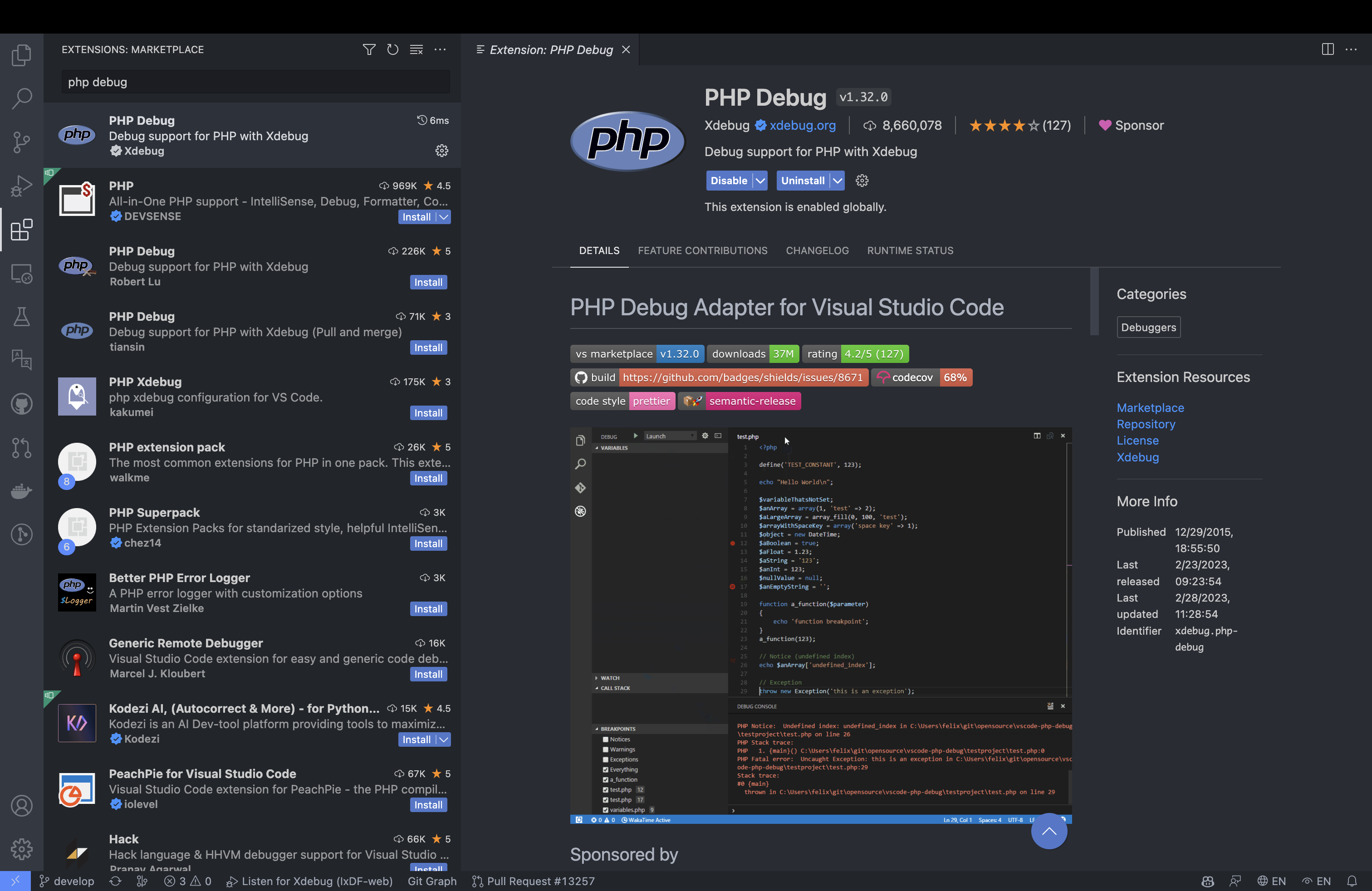
Install the PHP Debug plugin. It should look similar to this:
Create a
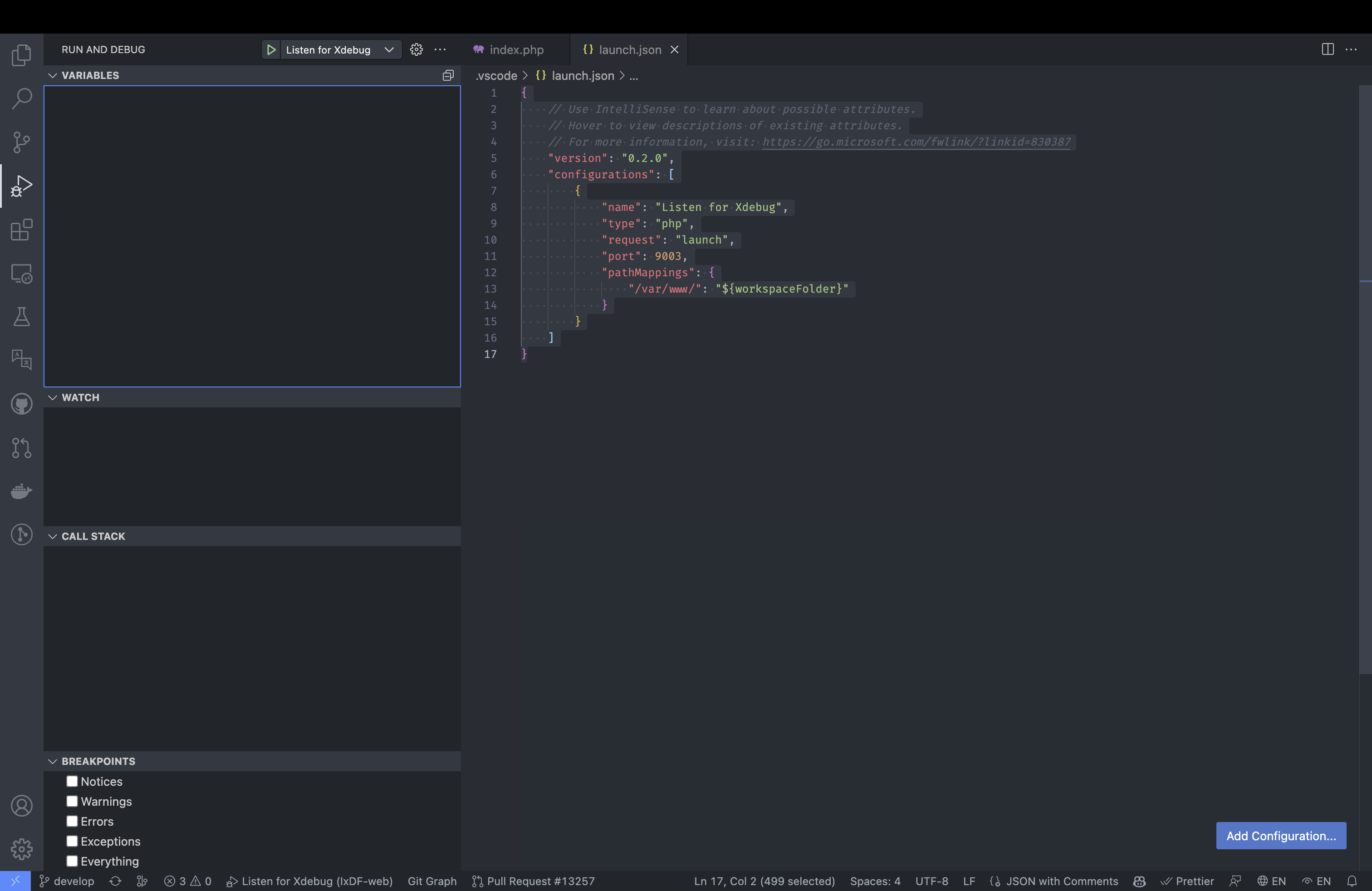
launch.jsonfile in the.vscodefolder with the following contents:json{ "version": "0.2.0", "configurations": [ { "name": "Listen for Xdebug", "type": "php", "request": "launch", "port": 9003, "pathMappings": { "/var/www/": "${workspaceFolder}" } } ] }Click on the 'Run and Debug' tab that should have appeared after you installed the PHP Debug plugin:
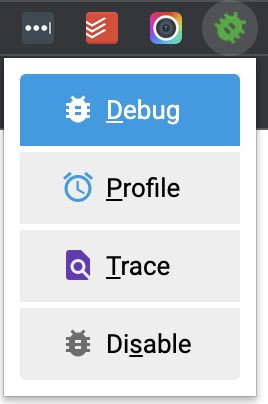
Open up Google Chrome and install the Xdebug helper extension. It should appear as a small bug icon in your extensions list. Pin it to your extensions bar for easy access. When debugging, you'll need to make sure the 'Debug' option is selected:
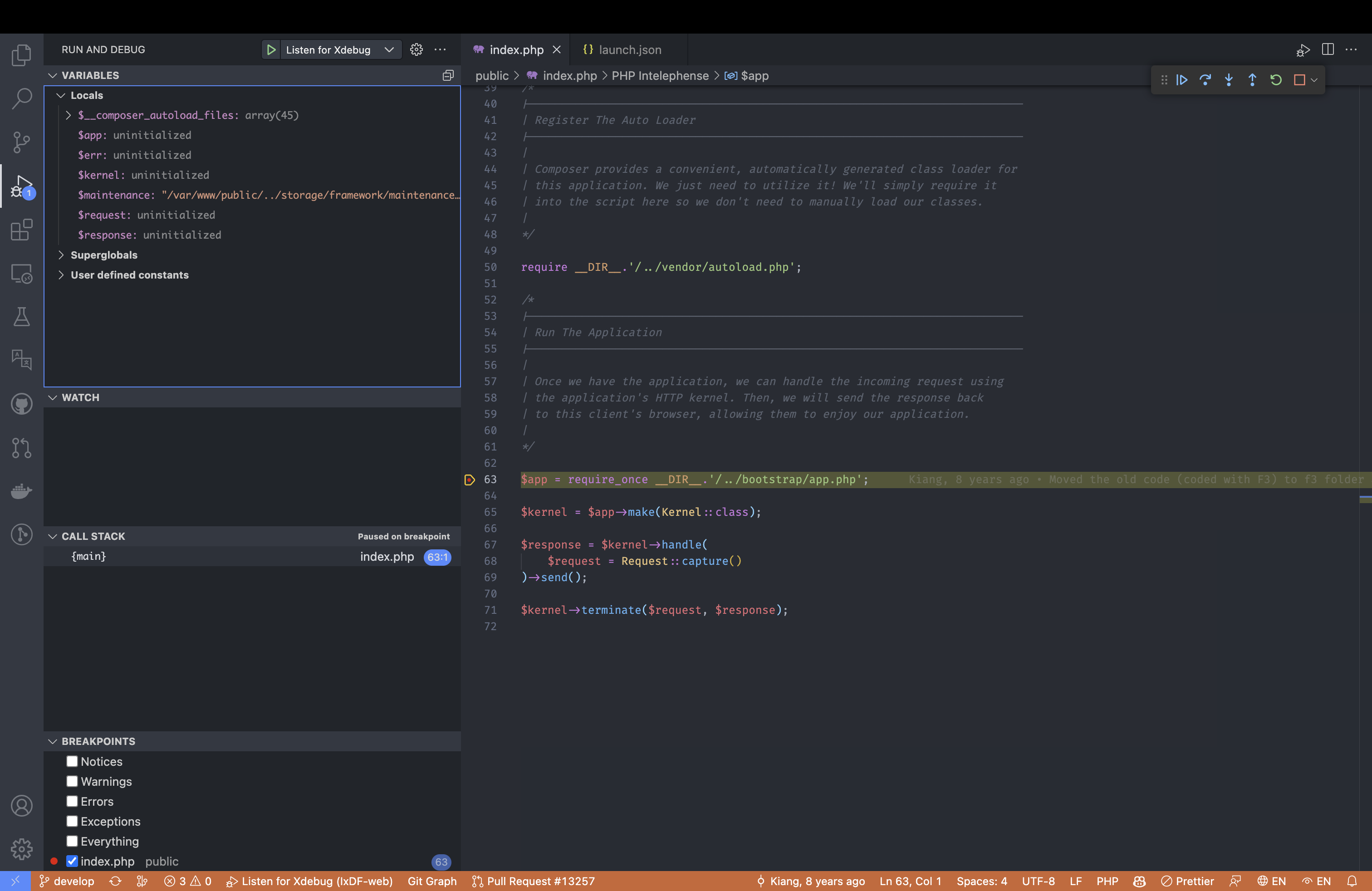
Open up a PHP file in VS code that you know will be executed and add a breakpoint somewhere to test:
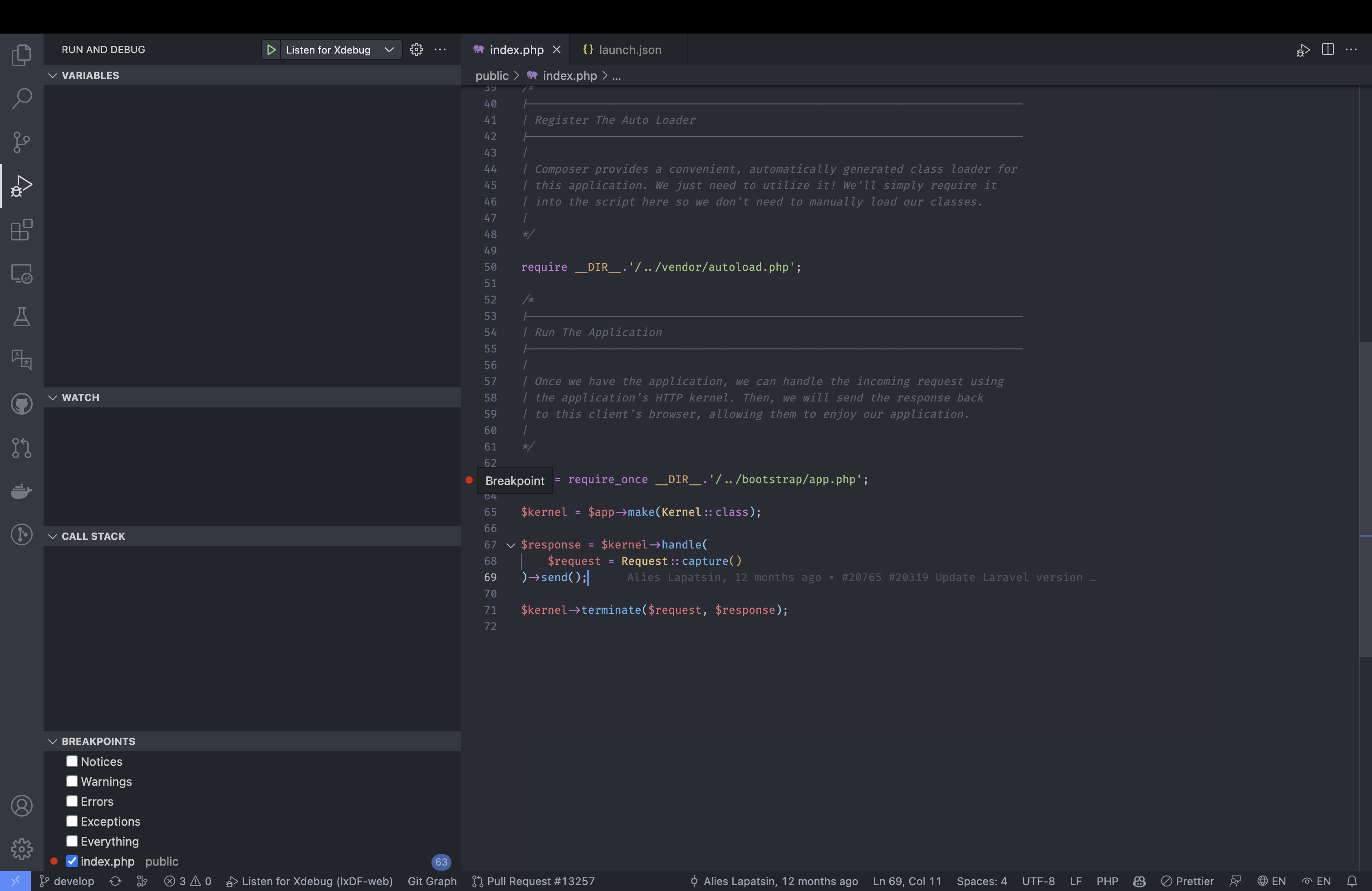
Click 'Listen for Xdebug' in the 'Run and Debug' tab:

Open the IxDF local site in a new tab
You should see that the page has stopped loading and debug information appears in VS Code 🎉 Use the floating toolbar on the top right of the VS Code screen to manage debugging