
Appearance
Video Admin Guide
This guide is a quick start to understand the main concepts of the Nova Video Admin page, its scope and available features. If you experience issues or have any suggestions text us at #dev channel — @devs
What is the "Video Admin"
You can access the video admin page at https://ixdf.org/admin/nova/resources/videos
The page helps us to process and publish videos we previously uploaded through the Amazon Web Services (AWS) system. AWS is used as a hosting of all our video files.
What does this mean? It means that you can input a URL of your previously uploaded video (AWS) and receive multiple formats and resolutions in a single click. Pretty neat right? 😃 On top of that, you can create poster images (cover/hero images for your videos) as well as subtitles!
How to use it
Upload a new video to AWS
If a new video needs to be processed, please check this guide to assist you in the upload process.
Process your video through the Nova Admin page
Go to Video panel
Click on the "Create video" button
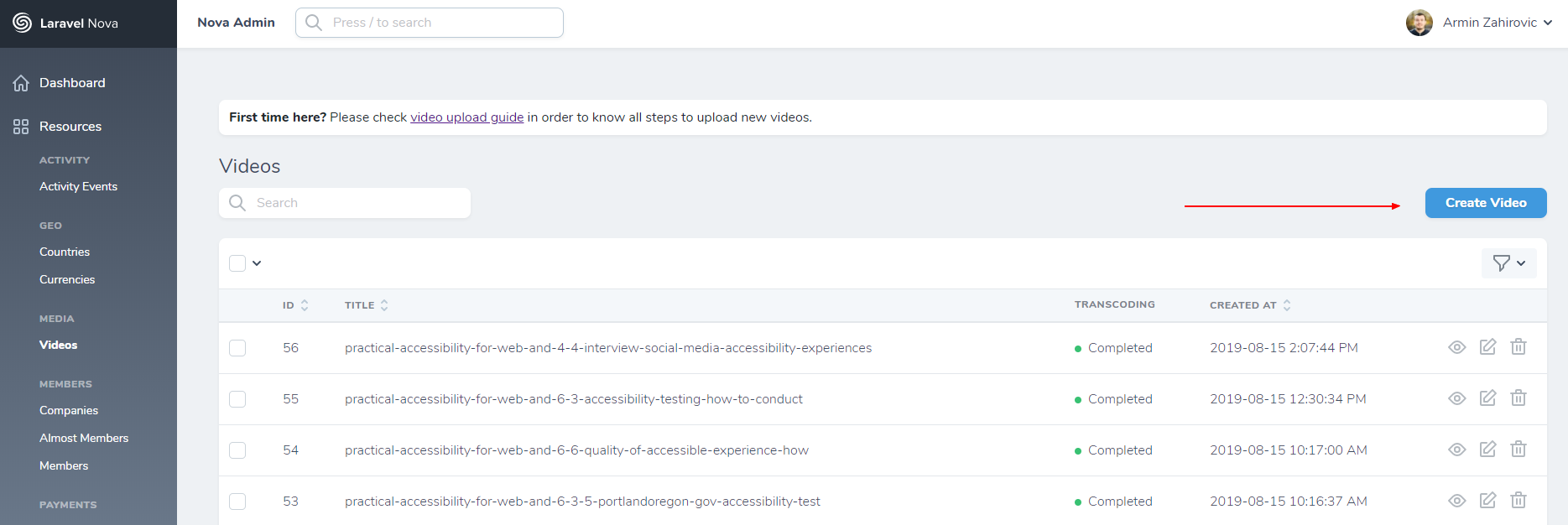
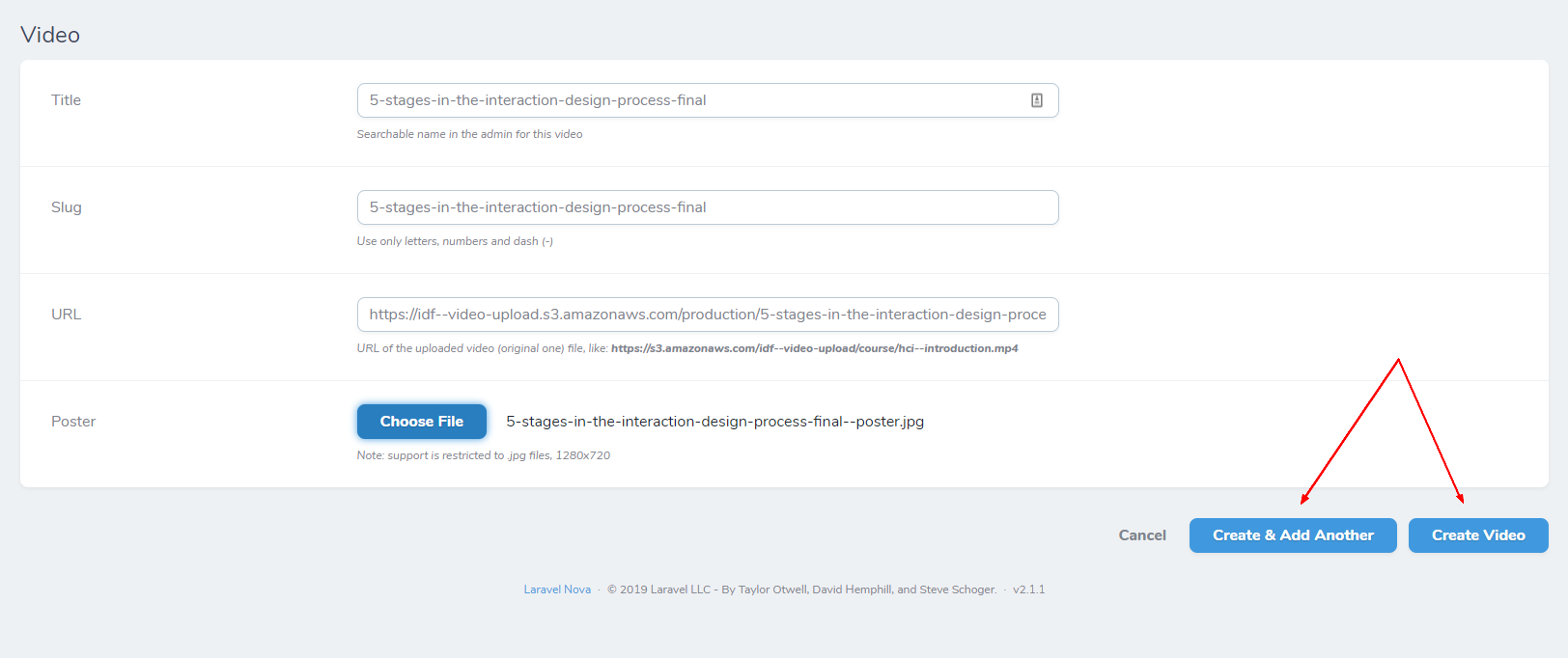
You will be redirected to the page below
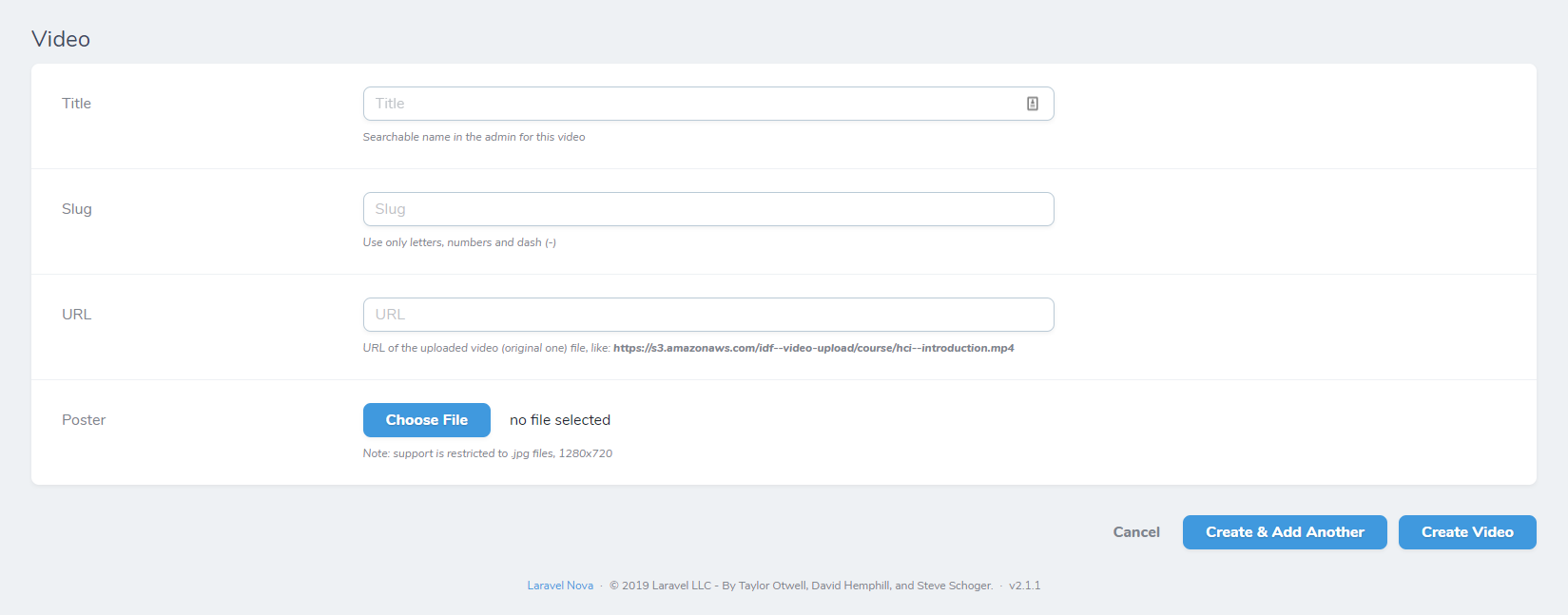
In the title field, please enter searchable caption of the video. You don't need to add dashes in this field. For example, “How Accessibility Impacts Usability and SEO”
In the slug field, please input the same video title you used on AWS. This is the field that requires dashed. For example, if your video is named “how-accessibility-impacts-usability-and-seo” on AWS, you will use the same slug on the Nova page.
In the URL field, please input the Object URL which you can find on AWS. If you don’t know how to find it, check the instructions: upload guide, step 5.
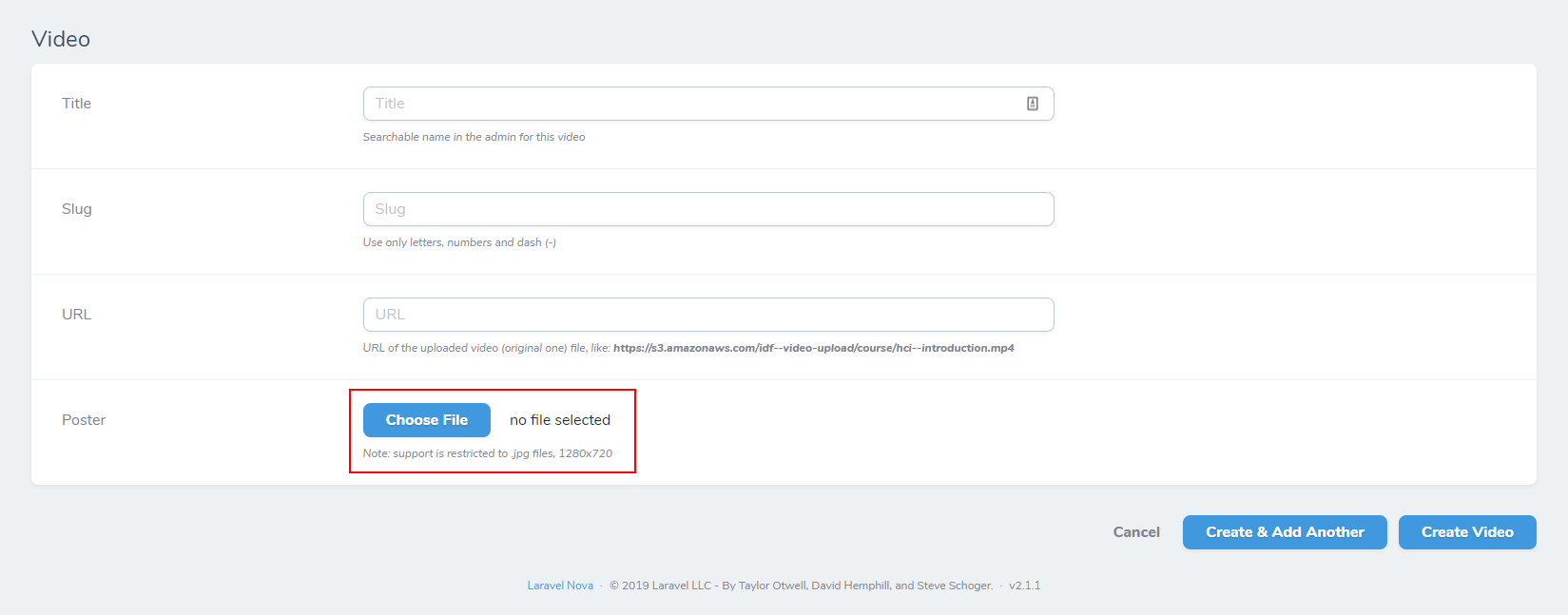
If you created a poster image (cover/hero/preview image for your video), please click on the choose file button and upload your image.
So far so good! You almost processed your video. Let’s just give you an overview how your inputs should look like:
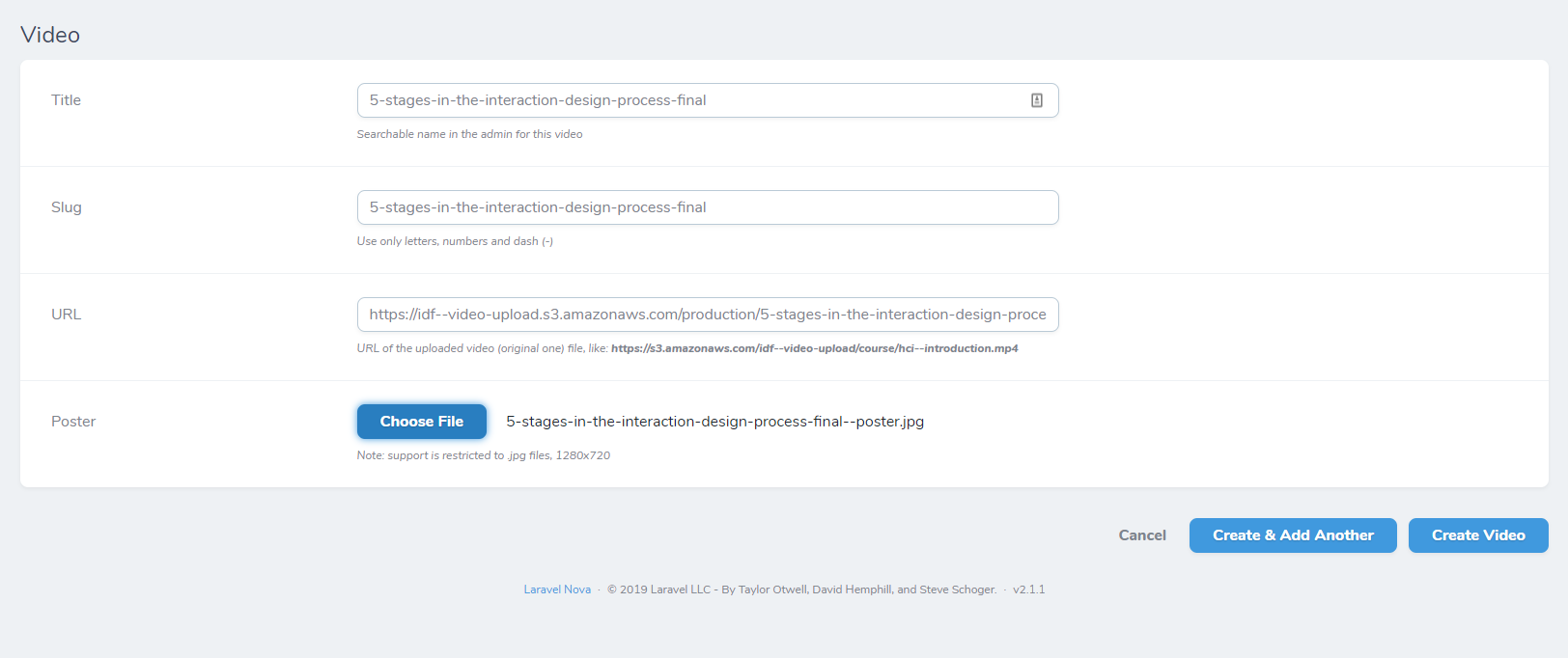
Once you’re satisfied with your inputs, click on the create video button. You can also click on the "Create Video and Add Another One" if you want to upload a new video and repeat the process
Your video will be listed now in the video section and it will be in the "pending status"
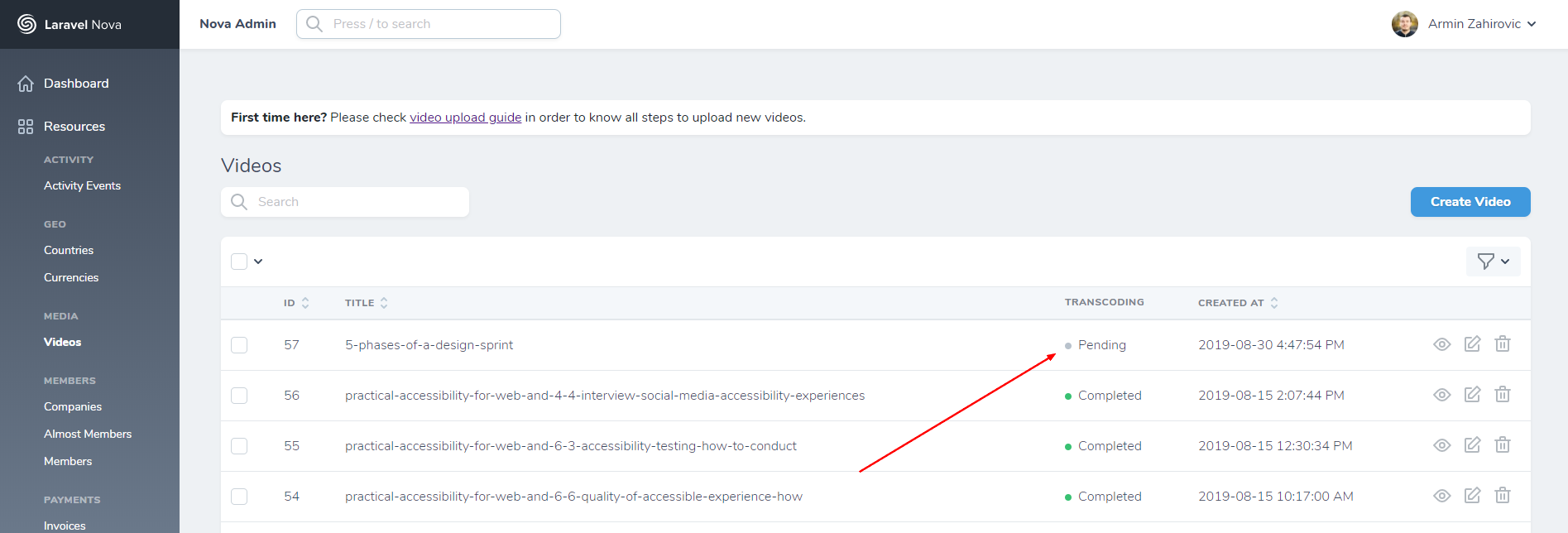
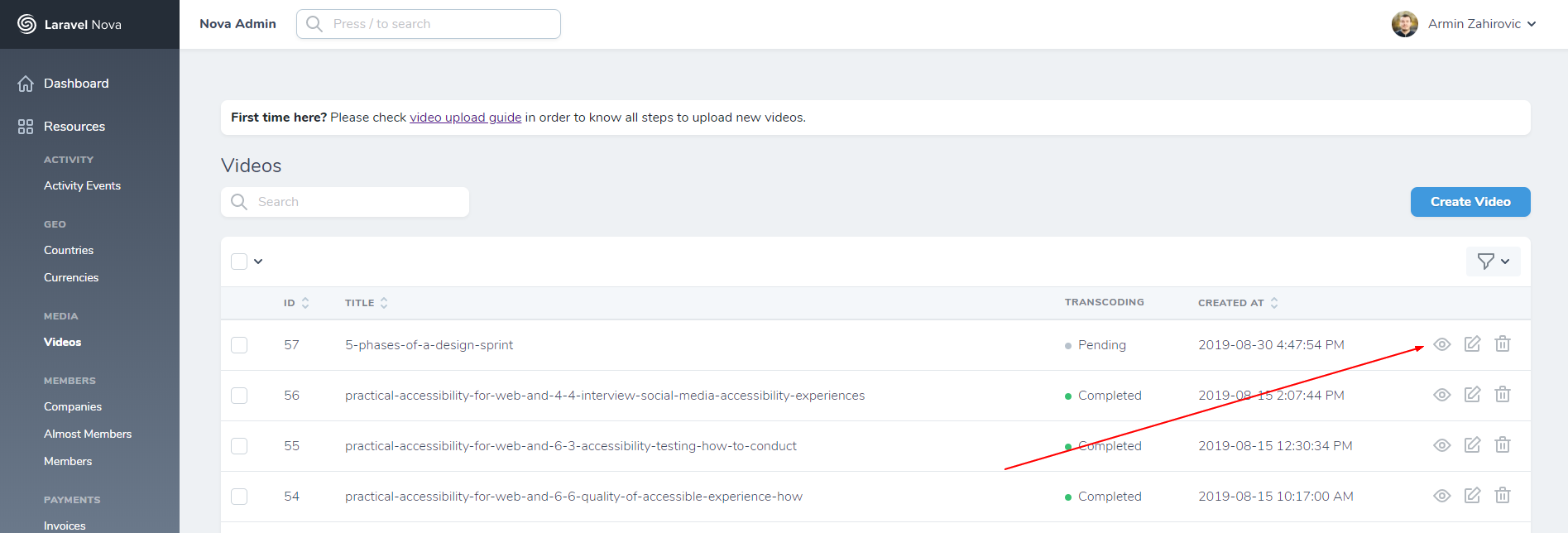
Our job is not done yet as we need to properly process the video. Click on the view button
Select the "Request transcoding" action:
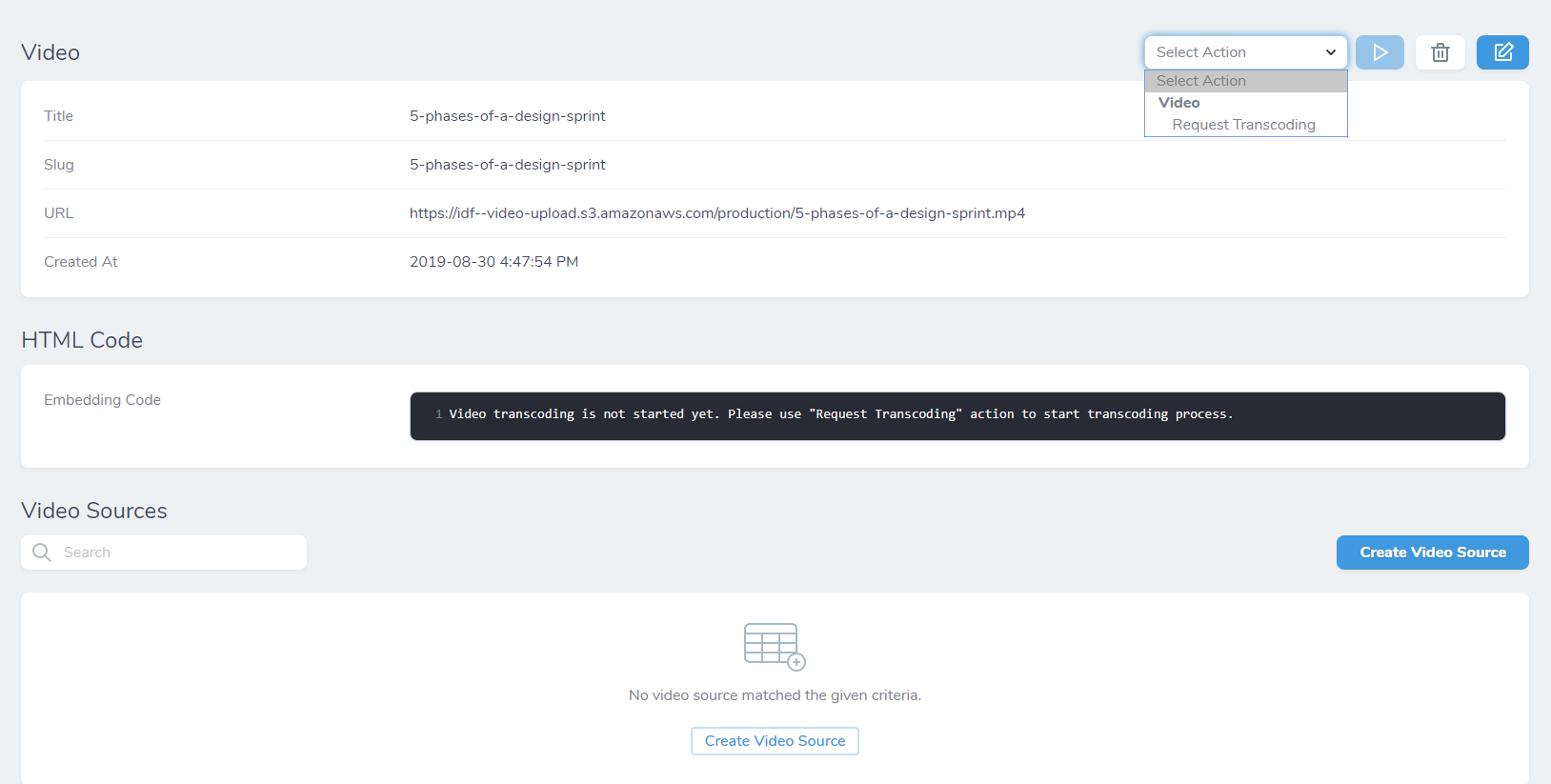
Click on the play button:
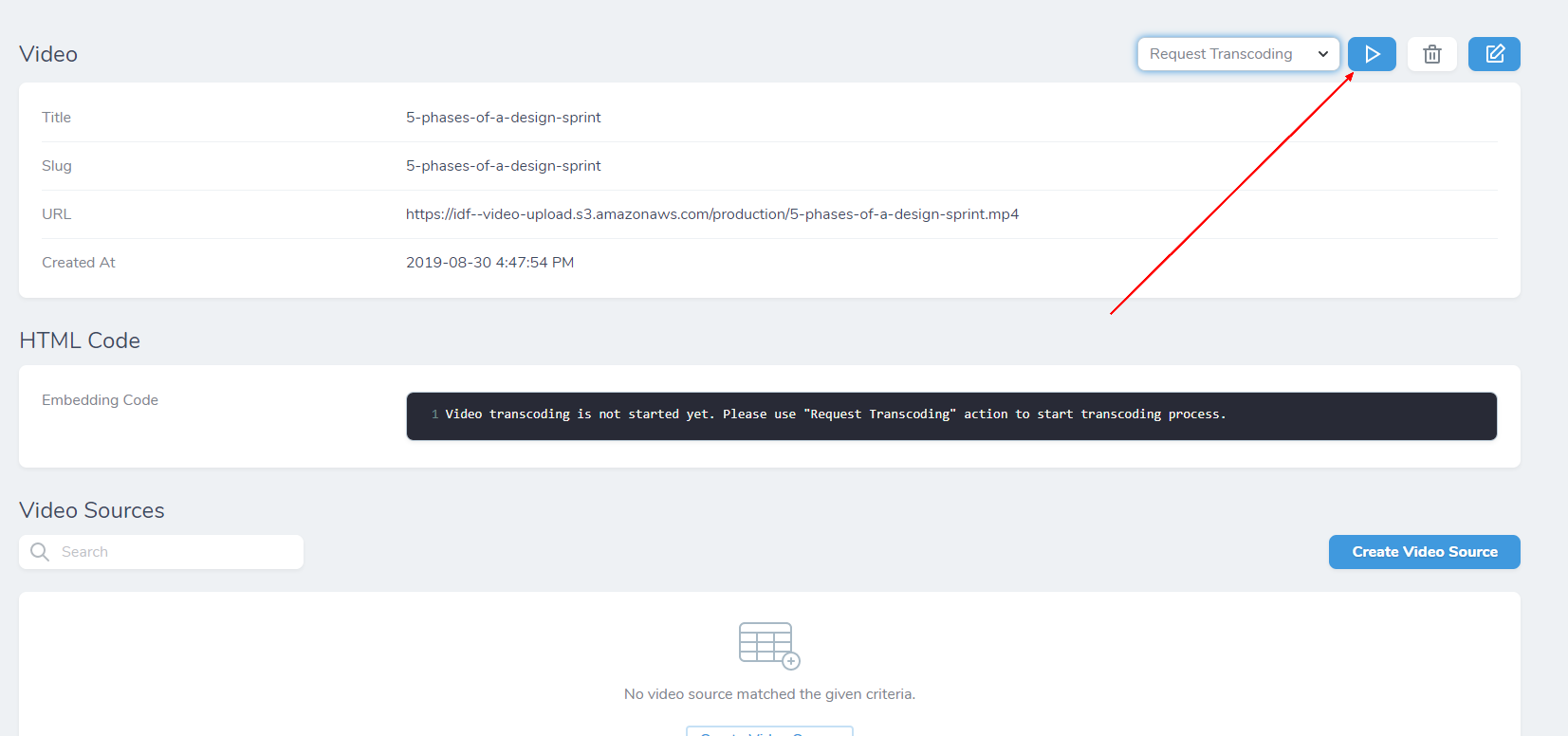
Now you will see the "processing" notification. You will just need to be patient for a few minutes until the system processes the video. Try to refresh the page in 30 minutes and see if the status changed from processing to completed. Additionally, a notification will be sent to #work-logs channel on Slack to inform the video
Once the system completes the process (you will see the status - completed), you can click on the view button again and you will see your code:

Replace a video
The steps to replace an existing video are very close to steps that need to be taken to upload a new video.
Start by replacing the video file on AWS, you can follow this guide to do so.
Find the video in the Nova Admin panel and re-run the “Request transcoding” action.
Be patient for a few minutes until the system processes the video.
Subtitles
In case you want to add subtitles, you can do that on the same "view" page. Click on the tab "Subtitles" and then press the "create subtitles" button
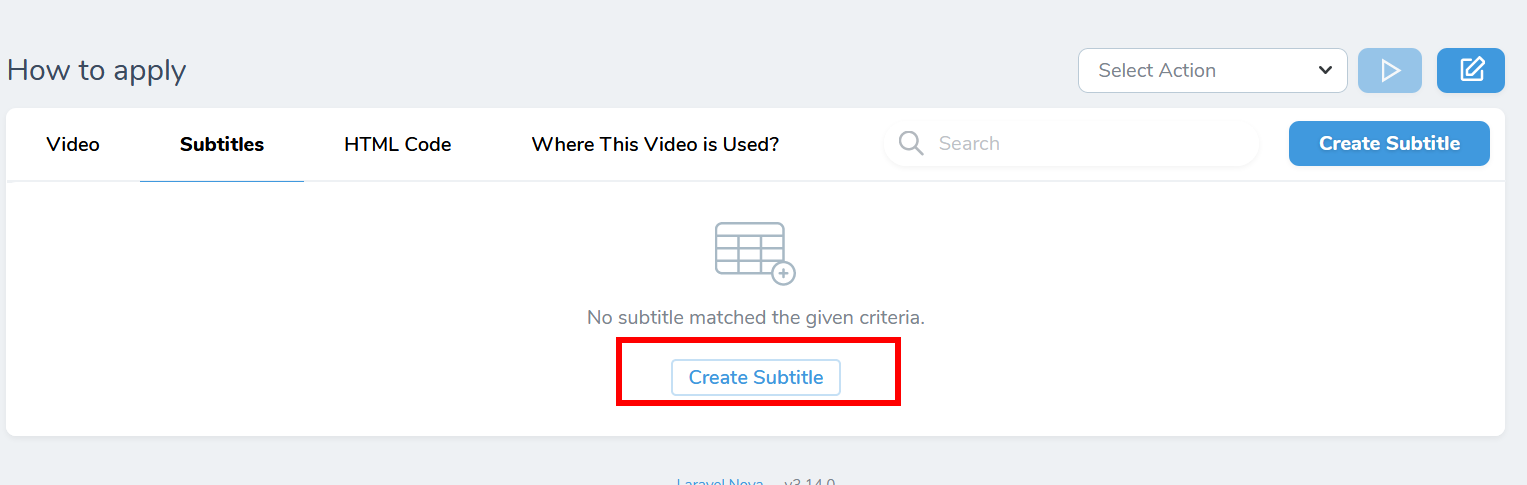
You can ask for John, on Slack, to subtitle the video. Just upload the video to our YouTube Sandbox account (https://studio.youtube.com/channel/UCKRtS6bhjSccS4TB6srUWTw?c=UCKRtS6bhjSccS4TB6srUWTw), using mads.soegaard.idf@gmail.com (aka the marketing inbox in LastPass). You can download the .vtt from there when done and upload it to Nova.
choose your file, select the language and click on the create video subtitle button
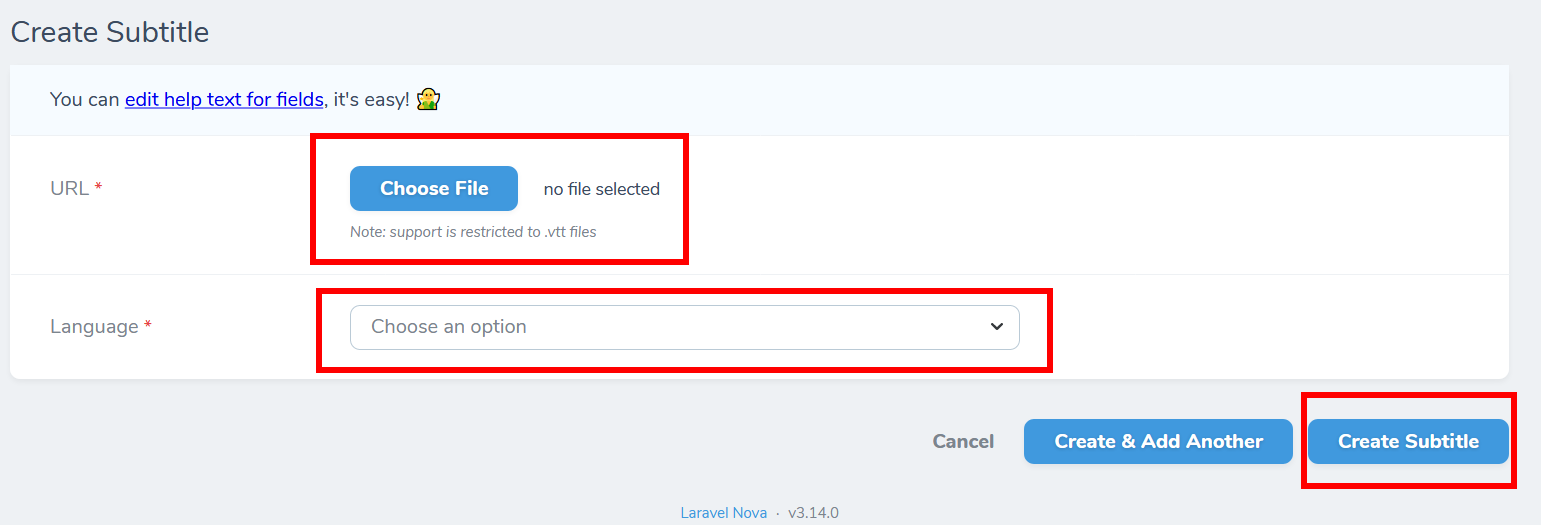
Subtitles code line will be added in the html code automatically
Congrats! You’re done! Now you can use the HTML code and input it in appropriate course pages.