
Appearance
SEO module overview
Managing SEO meta
'SEO meta' refers to all of the data that is
- crawled by search engines like Google and Bing to present meaningful search results on Search Engine Result Pages (aka SERP)
- Used by social media platforms to create previews of posted links
- indexed by our internal search system to provide relevant results when making searches on interaction-design.org
These details are stored within a single model in the codebase called SeoMeta and then linked to resources such as courses, articles, masterclasses, tags, etc. This allows us to make changes in one place and have them work across all resources, rather than having to duplicate changes across each of them.
There is a central location where all SEO meta can be managed on Nova, here's the link to it.

You can also manage the SEO meta for any particular resource on Nova. For example, if you open up the details page for a particular course, you'll see a card at the bottom which lets you create or update SEO meta just for that course. The same would apply to articles or masterclasses.
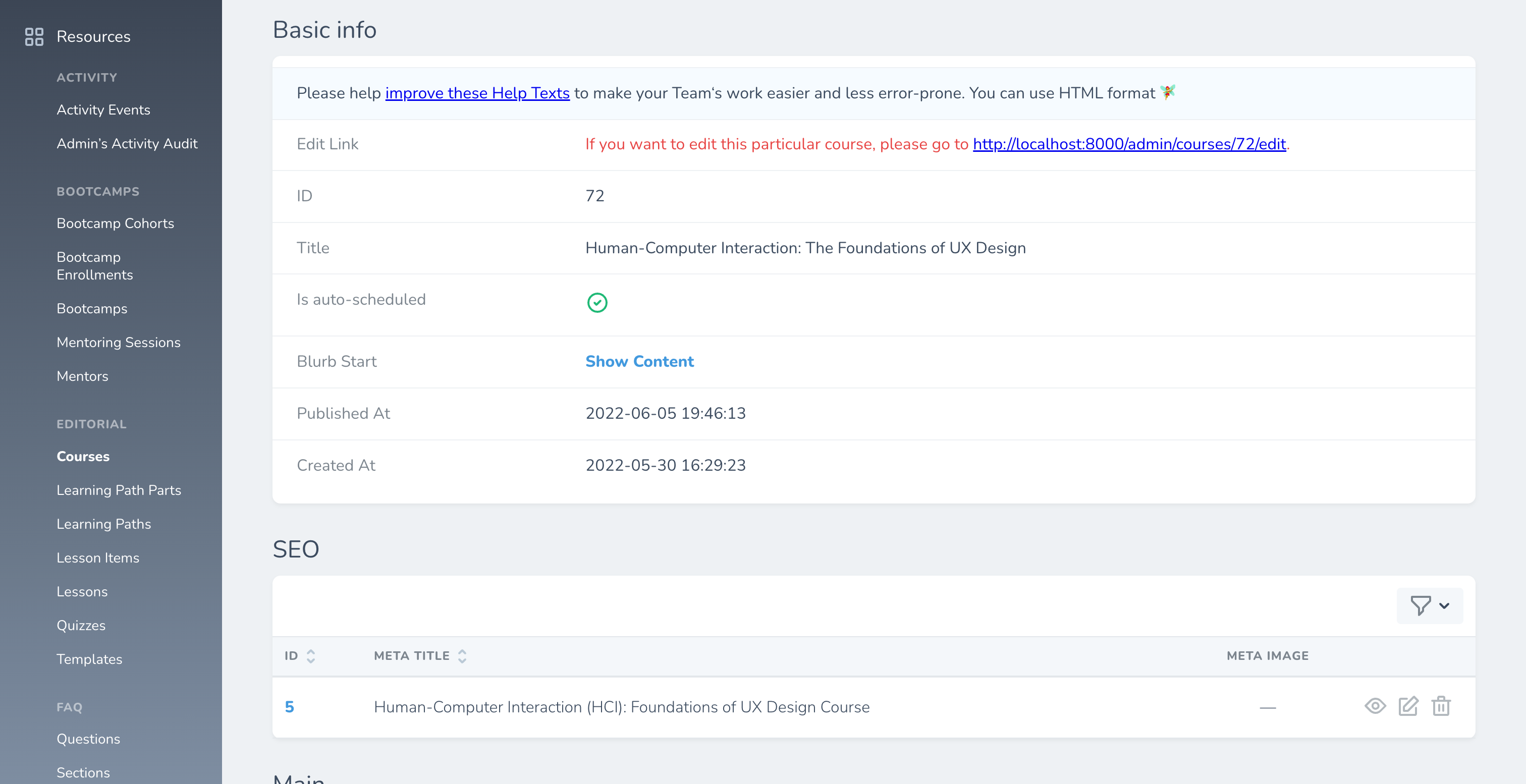
Article SEO meta
In the case of articles, which historically allowed for managing the SEO description on the classic admin panel, we've adjusted the logic to allow you to still create or edit the description from there, although it's recommended to instead manage the meta details on Nova as some SEO-related fields would be too complicated to add on the classic admin panel.
Important SEO meta values
Meta title
The meta title is the text displayed on SERPs and browser tabs. In most cases, the title of the resource is perfectly fine as the SEO meta title. However, the ideal length of a meta title is 50–60 characters, so you may sometimes want a slightly shortened version of the title to be shown on Google as opposed to what's shown to users who visit that resource on the site.
Meta description
The meta description is shown on search results below the title. It should ideally be 155–160 characters. Any longer than that and Google will truncate it. Any shorter and it may not be sufficiently descriptive enough, in which case Google might just show other text on your web page that it deems more relevant.
This is generally the most important meta value to update. For some resources, such as courses and masterclasses, the default description is just the first 160 characters of the description for the resource itself. This is very often not a good enough summary of the resource and because these descriptions include HTML, they can potentially include strange characters (such as video tags).
The meta description is also indexed in our internal search system, so it's also important to take into consideration how it is displayed on the site and whether or not the content of the description improves search relevancy.
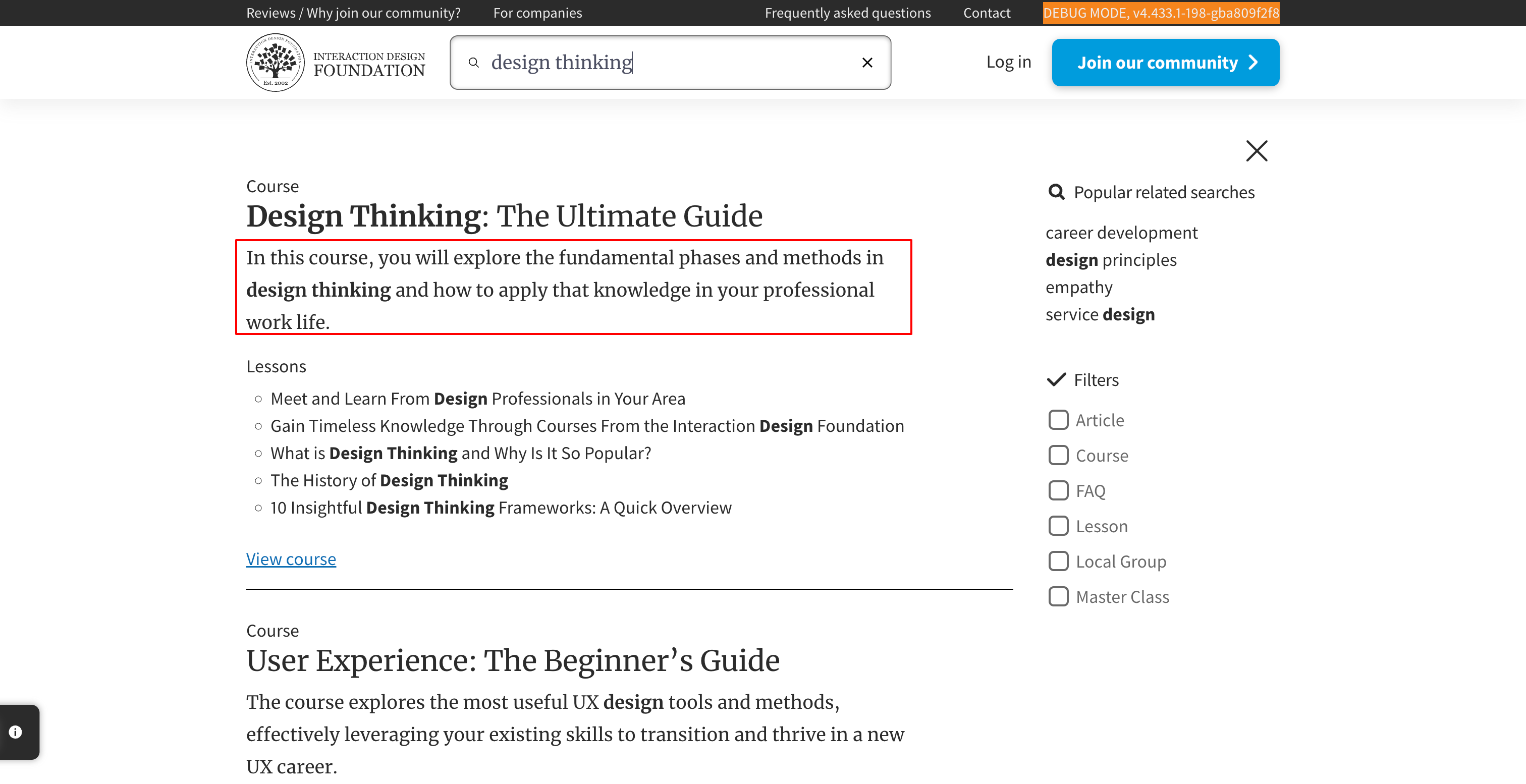
Meta image
The meta image is actually set as the value of the og:image tag. This is used by social media platforms such as Meta, LinkedIn and Twitter to generate previews of posted links. While each platform has its own recommended settings, the best resolution to make them all relatively happy is 1200px by 630px.
To check how a link to a resource would appear on social media platforms, you can use the social share preview tool. Here's what that would look like for one of our courses that has correct SEO meta set:
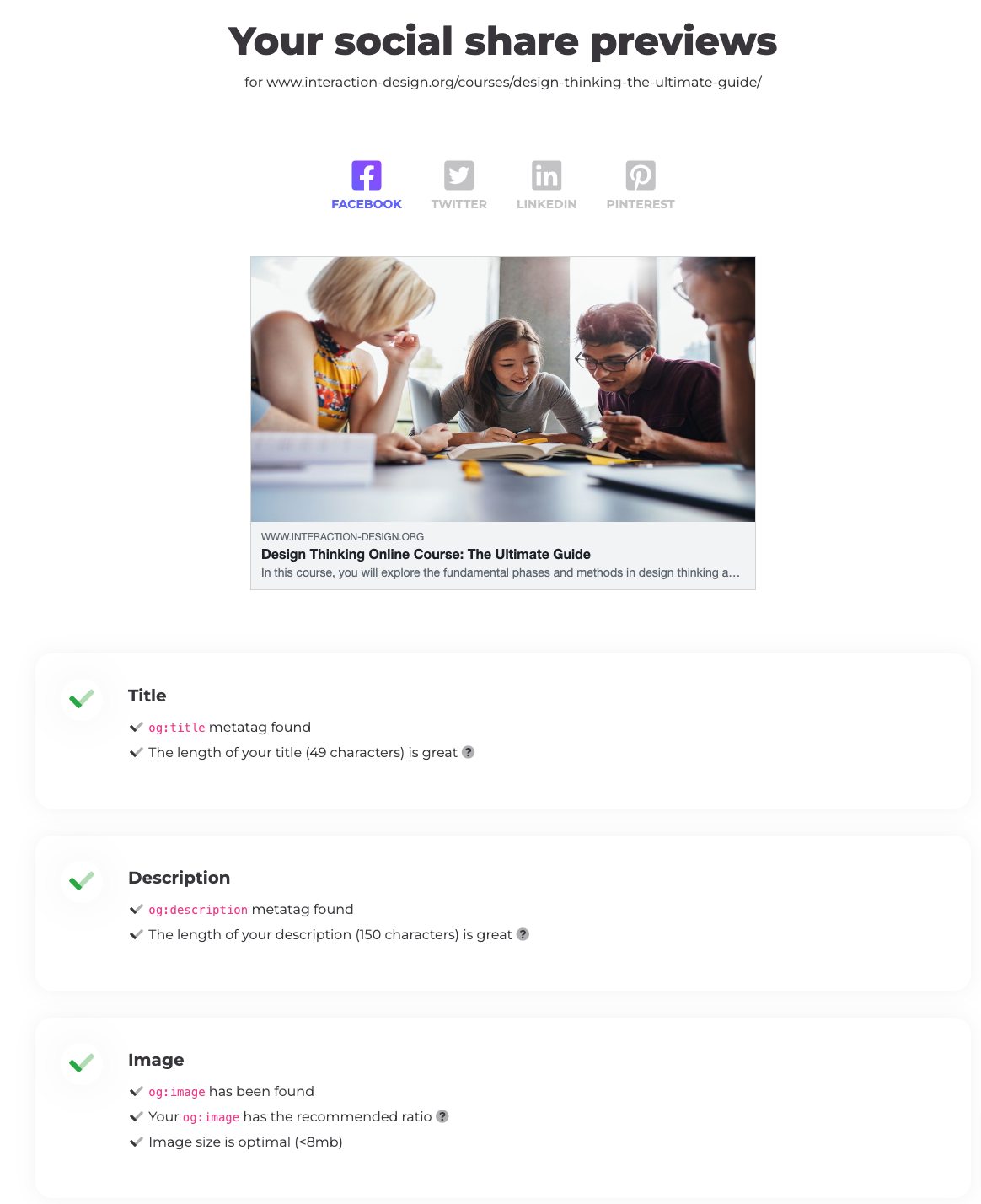
The default meta image values for resources that you'd share on social media are set as follows:
- Courses: The course thumbnail. This is generally terrible as its a tiny square, so it's very important to set a proper meta-image for courses.
- Masterclasses: The hero image for the masterclass. This image is typically quite big, so it gets cropped on social media. While not quite as bad as courses, you should definitely set a meta image for masterclasses
- Articles: The article's main image, shown at the beginning of the article. Most of these images are fairly close to being the right resolution already, so its not critical, but it is better to create a version of the article image with the right resolution and use it as the meta image.
Checking SEO meta values for a resource
The easiest way to see all the SEO meta values for a given page is to install and use a browser extension:
- Firefox: SEO Meta 1 Copy
- Chrome: SEO META in 1 CLICK
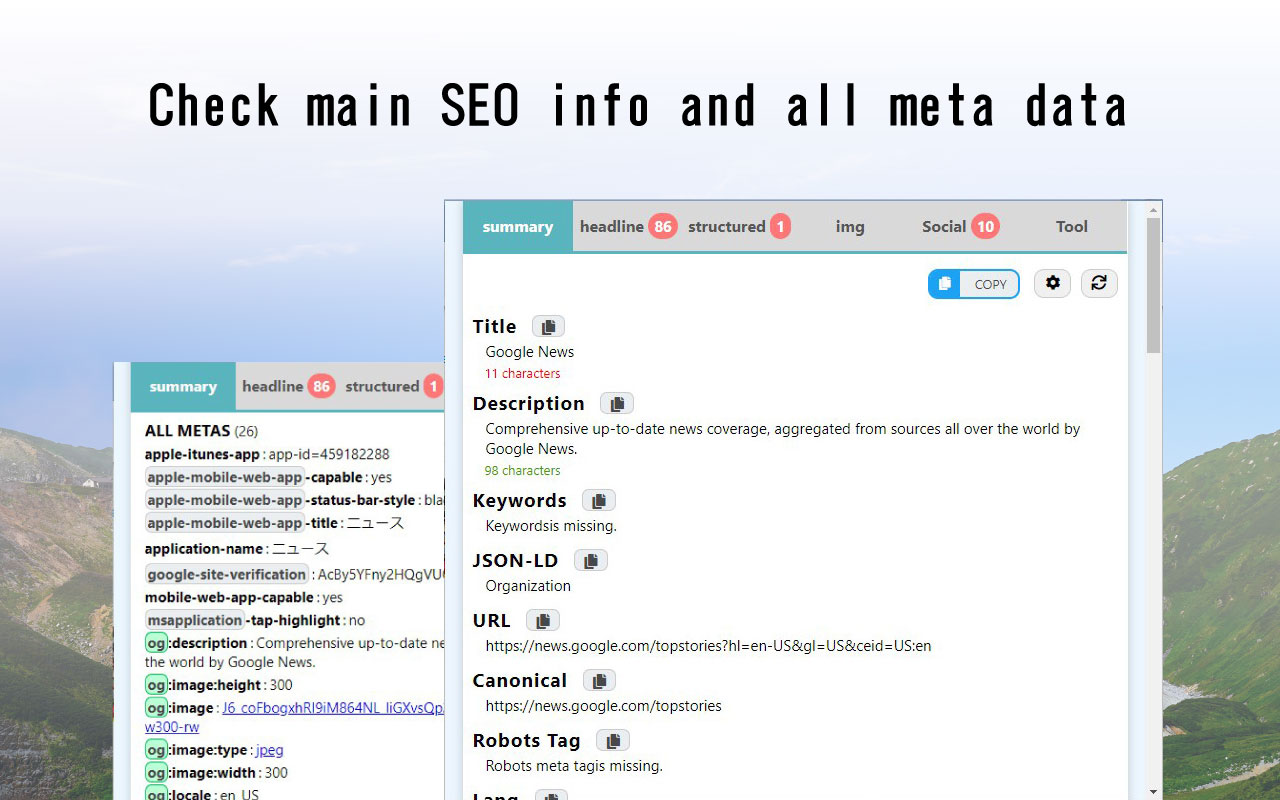
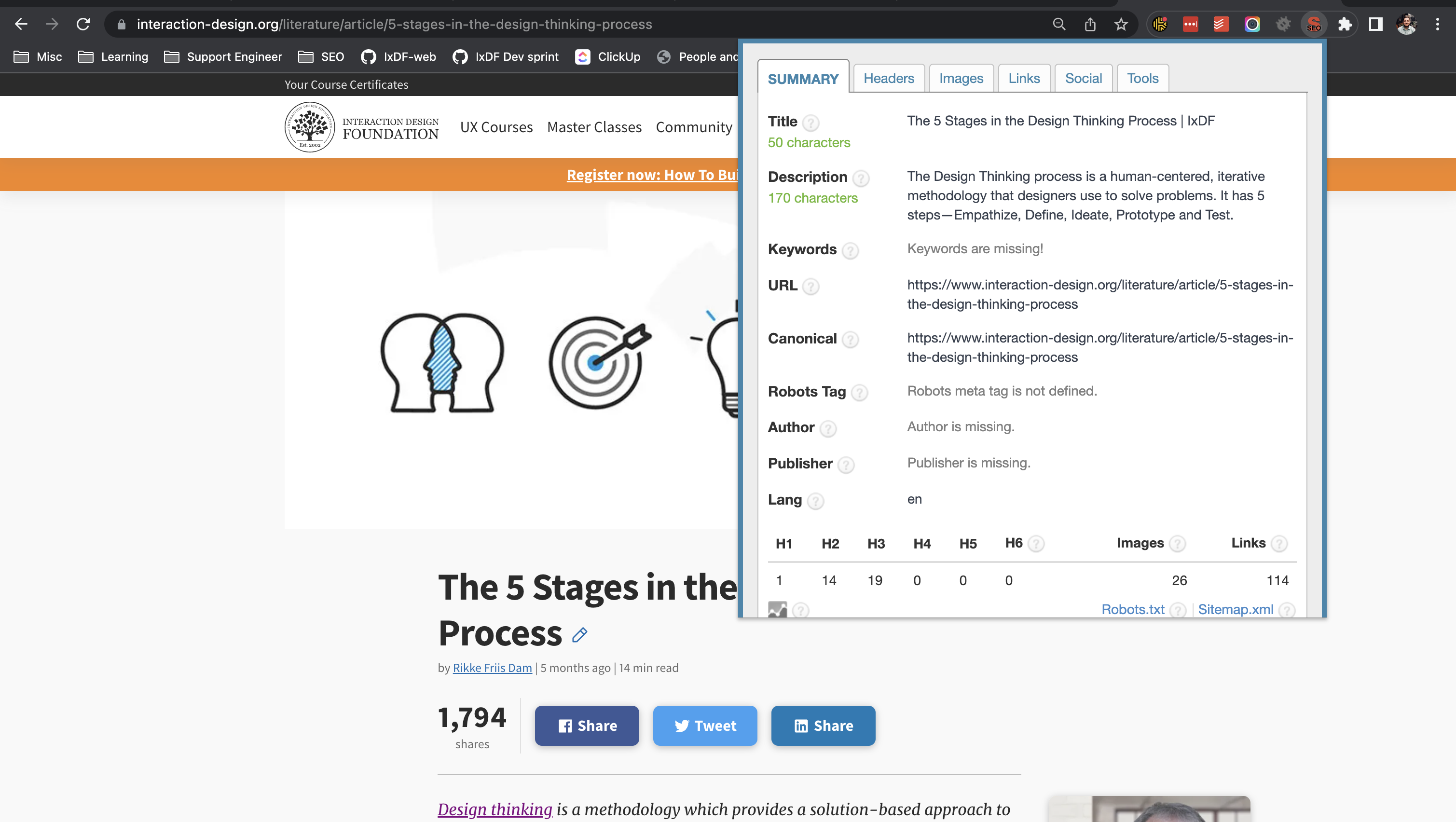
This can be particularly helpful when creating new SEO meta for an existing resource, as you can just copy and paste the values that should remain the same, and change what you need.
You should also verify any changes made to SEO meta using https://validator.schema.org.
Automatically generated Open Graph images
The platform is capable to automatically generate Open Graph images for certain resources.
It is currently automatically generating Open Graph images for:
- Articles
- Courses
- Local Groups
- Master Classes
- Members
- Topic Definitions
Under the hood, the implementation makes use of Browsershot to capture a screenshot of an Open Graph card, which is then uploaded to S3. The images are stored in the ixdf--images bucket. This process is automated by hooking into model events such as saved or restored.
You can control whether this feature is enabled by setting the AUTO_GENERATE_OPEN_GRAPH_IMAGES environment variable.
Mass-generating Open Graph images
To mass-generate Open Graph images, you can use seo:generate-open-graph-images Artisan command.
Examples:
php
// Generate Open Graph images for all courses
php artisan seo:generate-open-graph-images --resource=course

// Generate Open Graph images for specific articles, overwriting existing images
php artisan seo:generate-open-graph-images --resource=article --resource-ids=1,2,3 --overwrite
Automatically generating Open Graph images on local environment
The local environment is ready to generate Open Graph images thanks to a dockerized installation of Chrome. Please make sure your environment is configured to use the local Browsershot setup by including the following environment variables in your .env file (check .env.example for reference):
BROWSERSHOT_URLBROWSERSHOT_REMOTE_CHROMIUM_IPBROWSERSHOT_REMOTE_CHROMIUM_PORT
Please run npm run build before generating Open Graph images to ensure that Vite outputs real asset paths, rather than “hot” asset paths, so that the assets can be accessed from the Chrome Docker container.
robots.txt vs noindex
Crawling is the discovery of pages and links that lead to more pages.
Indexing is storing, analyzing, and organizing the content and connections between pages.
- Via robots.txt you can disallow crawlers to crawl some pages.
- Via noindex you instruct search engines to not index page for search results.
- Via sitemap.xml you instruct search engines to crawl some pages with different priority.
If you want a page NOT indexed in the search results, then do NOT add it to the robots.txt file. Only add the meta noindex tag/header on the page.
If you are concerned that someone would find a particular web page or URL in the search results, then do NOT use the robots.txt file to disallow the URL from being crawled.
Here is how blocked by robots.txt page looks like on google: 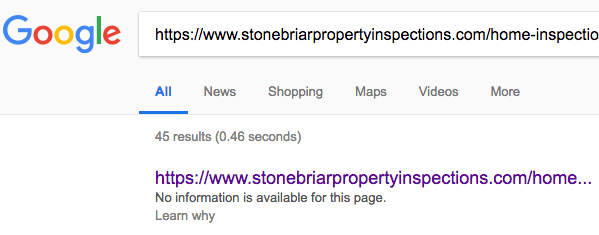
Not-indexed directory for images
To prevent search engines from indexing specific images, a special directory called resources/img/not-indexed is available. All images placed in this directory are excluded from indexing by a rule in the robots.txt file:
text
Disallow: /img/not-indexed/The primary purpose of excluding these images is to avoid hosting and serving logos of external brands, partners, clients, competitors and affiliated universities under the interaction-design.org domain.